
With the Files class, you can list the contents of a directory: Files.list() returns the entries of a single directory, and Files.walk(), Files.walkFileTree(), and Files.find() traverse a whole directory tree. All four methods return the entries as Path objects that you can work with directly – filter, read, copy, delete.
In most cases, listing a single directory looks like this:
try (Stream<Path> entries = Files.list(Path.of("files/project"))) {
  entries.forEach(System.out::println);
}
files/project/pom.xml
files/project/docs
files/project/README.md
files/project/srcFiles.list() opens the directory and returns its entries as a Stream<Path> – files and subdirectories, but not their contents (that is, not the files and directories inside the subdirectories). The stream keeps the directory open until it is closed; that is why it belongs in a try-with-resources statement.
Files.walkFileTree() has existed since Java 7, the three stream methods list(), walk(), and find() since Java 8. The methods list() and listFiles() of the File class are older, and they have a property I show at the end of the article: in case of an error, they return null.
In this article, you will find out
- how to list a directory with
Files.list()and in which order the entries arrive, - how to filter the entries by a glob pattern like
*.{md,xml}, - how to search a directory tree recursively – with
Files.list()and your own recursion, withFiles.walk(),Files.walkFileTree(), andFiles.find(), - in which order
walkFileTree()calls the four methods of aFileVisitorand whatSKIP_SUBTREE,SKIP_SIBLINGS, andTERMINATEdo, - how to limit the search depth and follow symbolic links,
- what happens when a subdirectory is not readable, and with which variant the search continues anyway,
- which of the four variants I recommend for which case,
- why you will find
File.listFiles()only in old code.
The Examples in This Article
All examples list the directory files/project/ from the example repository. It contains a small Maven project with five files in three subdirectories:
project/
├── README.md
├── pom.xml
├── docs/
│ └── setup.md
└── src/
├── Main.java
└── util/
└── Strings.javaYou can find the complete code in the GitHub repository java-file-io, in the package eu.happycoders.listing. There, each section has its own class with a main() method that produces the outputs shown. Run the classes from the root directory of the repository; the directories that some examples create themselves end up under target/.
The classes in the repository use language features from Java 25 and therefore run only on Java 25 or later. The snippets in the article run on Java 11 or later – the version that introduced Path.of() and Files.writeString(). The outputs are from macOS; where Linux or Windows differ, the text says so.
Listing a Directory with Files.list()
Files.list() returns the entries of a directory as a Stream<Path>. Each entry is the path of the directory with the name of the entry appended – files/project and pom.xml become files/project/pom.xml. The entries . and .., which the file system keeps for the directory itself and its parent directory, are not included.
The method is not recursive. The call on the subdirectory src shows this:
Path project = Path.of("files/project");
try (Stream<Path> entries = Files.list(project.resolve("src"))) {
entries.forEach(System.out::println);
}files/project/src/util
files/project/src/Main.javaThe subdirectory util appears as an entry, the file Strings.java inside it does not. The section Searching a Directory Tree Recursively shows how to get the entries of the subdirectories as well.
The Order of the Entries
The order in which the entries arrive is up to the file system. In the output from the introduction, pom.xml comes before docs and README.md – that is the order in which APFS, the file system of my Mac, returns the entries. A different file system returns a different order. It may happen to be alphabetical, but you cannot rely on that.
If you need a sorted list, you have to sort the stream yourself:
try (Stream<Path> entries = Files.list(project)) {
entries.sorted().forEach(System.out::println);
}files/project/README.md
files/project/docs
files/project/pom.xml
files/project/srcPath implements Comparable, so sorted() without an argument is enough. On macOS and Linux, the sort compares the paths character by character, by Unicode value – uppercase letters (A = 65 to Z = 90) come before lowercase letters (a = 97 to z = 122), hence README.md before docs. On Windows, the sort ignores case; there, docs comes before README.md.
Only Files or Only Directories
Since Files.list() returns a stream, you can filter the entries with the operations of the Stream API. The following example prints only the subdirectories:
try (Stream<Path> entries = Files.list(project)) {
entries.filter(Files::isDirectory).forEach(System.out::println);
}files/project/docs
files/project/srcFor files, use Files::isRegularFile. An entry for which both methods return false is either a symbolic link, which you can detect with Files.isSymbolicLink(), or of type “other”, e.g., a named pipe, a device file, or a socket.
Closing the Stream
The stream from Files.list() holds an open directory – a file handle of the operating system – until you close it. Every operating system limits the number of handles per process. A program that does not close the streams from Files.list() uses up the handles one by one until the next attempt to open a file fails. The following program opens streams without closing them until that happens:
List<Stream<Path>> open = new ArrayList<>();
try {
while (true) {
open.add(Files.list(project)); // never closed
}
} catch (IOException e) {
System.out.println(open.size() + " streams open, then: " + e);
} finally {
for (Stream<Path> stream : open) {
stream.close();
}
}122878 streams open, then: java.nio.file.FileSystemException: files/project: Too many open filesOn my Mac, the limit is reached after 122,878 open streams; on your machine, the number depends on the operating system and its configuration. Take a server that lists a directory with Files.list() for each request and never closes the stream: sooner or later, it reaches this limit – and then not only the next Files.list() fails but every attempt to open a file or a network connection in the same process. On macOS and Linux, a network connection counts as an open file, too.
That is why all examples in this article put the stream in a try-with-resources statement. The same applies to the streams from Files.walk() and Files.find() – they even keep open every directory on the path from the starting directory to the current entry.
NotDirectoryException and NoSuchFileException
If the path is not a directory but a file, Files.list() throws a NotDirectoryException. If the path does not exist, it throws a NoSuchFileException:
try (Stream<Path> entries = Files.list(project.resolve("pom.xml"))) {
entries.forEach(System.out::println);
} catch (NotDirectoryException e) {
System.out.println(e);
}
try (Stream<Path> entries = Files.list(project.resolve("test"))) {
entries.forEach(System.out::println);
} catch (NoSuchFileException e) {
System.out.println(e);
}java.nio.file.NotDirectoryException: files/project/pom.xml
java.nio.file.NoSuchFileException: files/project/testBoth are subclasses of IOException, and both are thrown as soon as Files.list() is called – not later, when the stream is read.
Filtering by File Name with Files.newDirectoryStream() and Glob Patterns
If you want only entries with certain names, say all Markdown files, there is a way from Java 7 that does without the Stream API: Files.newDirectoryStream() with a glob pattern as its second argument. A glob is the kind of pattern you know from the shell: * stands for any number of characters within a name, ? for a single character, and curly braces hold alternatives.
try (DirectoryStream<Path> entries =
Files.newDirectoryStream(project, "*.{md,xml}")) {
for (Path entry : entries) {
System.out.println(entry);
}
}files/project/pom.xml
files/project/README.mdDirectoryStream is not a java.util.stream.Stream but an Iterable that you traverse with a for-each loop – and that you also have to close, because the DirectoryStream, too, keeps the directory open. As with a java.util.stream.Stream, you can traverse a DirectoryStream only once.
The Javadoc of FileSystem.getPathMatcher() documents which patterns a glob allows. You can apply the same pattern to the results of a recursive search; the section Searching by Pattern with PathMatcher shows how.
Searching a Directory Tree Recursively
Often you need not just the entries of a single directory but all files below a directory, at any depth – e.g., all .java files of a project. There are four ways to do this. I demonstrate all four with the same example so that you can compare them.
With Files.list() and Your Own Recursion
The first way builds the recursion by hand: the method findJavaFiles() lists a directory with Files.list(), prints every .java file, and calls itself for every subdirectory.
private static void findJavaFiles(Path dir) throws IOException {
try (Stream<Path> entries = Files.list(dir)) {
entries.forEach(entry -> {
if (Files.isRegularFile(entry) && entry.toString().endsWith(".java")) {
System.out.println(entry);
}
if (Files.isDirectory(entry)) {
try {
findJavaFiles(entry);
} catch (IOException e) {
throw new UncheckedIOException(e);
}
}
});
}
}files/project/src/util/Strings.java
files/project/src/Main.javaThe try-catch inside the lambda is necessary because the Consumer of forEach() must not throw a checked exception. The IOException from the recursive call is therefore wrapped in an UncheckedIOException.
This way is the longest, but you keep control over every directory: you decide per directory whether to enter it, and you can catch an error for a single directory and continue searching. The section Locked Directories: AccessDeniedException shows what that is good for.
With Files.walk()
Files.walk() takes care of the recursion: it returns a stream with the starting directory and all entries below it, at any depth.
try (Stream<Path> paths = Files.walk(project)) {
paths.forEach(System.out::println);
}files/project
files/project/pom.xml
files/project/docs
files/project/docs/setup.md
files/project/README.md
files/project/src
files/project/src/util
files/project/src/util/Strings.java
files/project/src/Main.javaThe first element is the starting directory itself. After that, the entries come depth-first: a directory is immediately followed by its entries and their entries, and only then does the traversal continue with the next entry on the same level – docs is followed by docs/setup.md, and only then by README.md. Within a directory, the order is again that of the file system.
The search for .java files thus becomes a stream pipeline:
try (Stream<Path> paths = Files.walk(project)) {
paths
.filter(Files::isRegularFile)
.filter(path -> path.toString().endsWith(".java"))
.forEach(System.out::println);
}files/project/src/util/Strings.java
files/project/src/Main.javaThe stream reads the directories while the pipeline runs, not when walk() is called. Any IOException along the way – caused, for example, by a directory that cannot be opened – is wrapped in an UncheckedIOException and thrown from the terminal operation, here forEach(). That ends the entire search; the matches before the error have been printed, all those after it are missing.
Limiting the Search Depth
With a second argument, you limit how many directory levels Files.walk() descends. Depth 1 returns the starting directory and its direct entries:
try (Stream<Path> paths = Files.walk(project, 1)) {
paths.forEach(System.out::println);
}files/project
files/project/pom.xml
files/project/docs
files/project/README.md
files/project/srcThat is the output of Files.list() plus the starting directory. With depth 0, walk() returns only the starting directory; without the argument, Integer.MAX_VALUE applies – so walk() returns all levels of the tree, however deep it is.
Following Symbolic Links
By default, Files.walk() does not follow symbolic links: a link to a directory appears as an entry, its contents do not. The following example creates a directory data with one file under target/links/, and next to it the symbolic link shortcut pointing to data – and traverses the tree once without and once with the option FileVisitOption.FOLLOW_LINKS:
Path links = Path.of("target/links");
Files.createDirectories(links.resolve("data"));
Files.writeString(links.resolve("data/a.txt"), "a\n");
Files.createSymbolicLink(links.resolve("shortcut"), Path.of("data"));
System.out.println("-- without FOLLOW_LINKS");
try (Stream<Path> paths = Files.walk(links)) {
paths.forEach(System.out::println);
}
System.out.println();
System.out.println("-- with FOLLOW_LINKS");
try (Stream<Path> paths = Files.walk(links, FOLLOW_LINKS)) {
paths.forEach(System.out::println);
}-- without FOLLOW_LINKS
target/links
target/links/shortcut
target/links/data
target/links/data/a.txt
-- with FOLLOW_LINKS
target/links
target/links/shortcut
target/links/shortcut/a.txt
target/links/data
target/links/data/a.txtWith FOLLOW_LINKS, the file a.txt appears twice: once via the followed link to the shortcut directory and once directly.
A link pointing to a parent directory would make the search run forever without a countermeasure. That is why walk() with this option remembers every directory visited and reports such a cycle as a FileSystemLoopException. The next call shows this after creating a link loop to the parent directory in data:
Files.createSymbolicLink(links.resolve("data/loop"), Path.of(".."));
try (Stream<Path> paths = Files.walk(links, FOLLOW_LINKS)) {
paths.forEach(System.out::println);
} catch (UncheckedIOException e) {
System.out.println(e.getCause());
}target/links
target/links/shortcut
target/links/shortcut/a.txt
java.nio.file.FileSystemLoopException: target/links/shortcut/loopLike every IOException from the stream, the exception arrives wrapped in an UncheckedIOException. The output shows the cause that getCause() returns.
With Files.walkFileTree()
The third way is Files.walkFileTree(), the only one of the four ways without a stream. The method implements the visitor pattern: it traverses the directory tree and, for each entry, calls a method of a FileVisitor implementation that you pass to it. The class SimpleFileVisitor implements all four methods of the interface, so you only have to override the ones you need – to search for .java files, that is visitFile():
Files.walkFileTree(project, new SimpleFileVisitor<>() {
@Override
public FileVisitResult visitFile(Path file, BasicFileAttributes attrs) {
if (attrs.isRegularFile() && file.toString().endsWith(".java")) {
System.out.println(file);
}
return FileVisitResult.CONTINUE;
}
});files/project/src/util/Strings.java
files/project/src/Main.javaThe second parameter of visitFile() is the entry’s BasicFileAttributes – type, size, timestamps. walkFileTree() reads them for every entry to decide whether it is a directory, and passes them on to the visitor. attrs.isRegularFile() therefore requires no further access to the file system; Files.isRegularFile(file), on the other hand, would read the attributes a second time.
You do not have to wrap a visitor’s IOException: all four methods of FileVisitor may throw it, and walkFileTree() passes it on to the caller.
The Call Order of the Four Methods
FileVisitor has four methods, and walkFileTree() calls them in a fixed order: for each directory, first preVisitDirectory(), then visitFile() for each entry – or, for a subdirectory, the whole sequence again – and finally postVisitDirectory(). If walkFileTree() cannot read an entry, it calls visitFileFailed().
The following diagram shows the calls for a smaller directory project containing the file README.md and the subdirectory src, which holds Main.java:
project/
├── README.md
└── src/
└── Main.javaIn the diagram, calls for directories have a blue border, calls for files a gray one. The order of the entries within a directory – here README.md before src – is up to the file system. The square bracket on the right of the diagram marks the calls that are skipped when preVisitDirectory() returns SKIP_SUBTREE for src; the next section explains the return values.
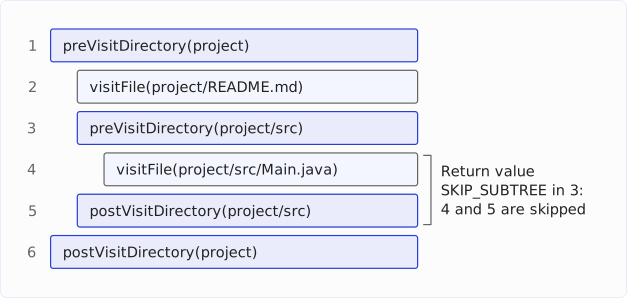
For the complete example directory of this article (not the smaller one from the diagram), the following visitor prints every call, numbered. It overrides the three methods that are called for readable directories:
static class LoggingVisitor extends SimpleFileVisitor<Path> {
private int step;
@Override
public FileVisitResult preVisitDirectory(Path dir, BasicFileAttributes attrs) {
System.out.println(++step + ". preVisitDirectory(" + dir + ")");
return FileVisitResult.CONTINUE;
}
@Override
public FileVisitResult visitFile(Path file, BasicFileAttributes attrs) {
System.out.println(++step + ". visitFile(" + file + ")");
return FileVisitResult.CONTINUE;
}
@Override
public FileVisitResult postVisitDirectory(Path dir, IOException exc) {
System.out.println(++step + ". postVisitDirectory(" + dir + ")");
return FileVisitResult.CONTINUE;
}
}Files.walkFileTree(project, new LoggingVisitor());1. preVisitDirectory(files/project)
2. visitFile(files/project/pom.xml)
3. preVisitDirectory(files/project/docs)
4. visitFile(files/project/docs/setup.md)
5. postVisitDirectory(files/project/docs)
6. visitFile(files/project/README.md)
7. preVisitDirectory(files/project/src)
8. preVisitDirectory(files/project/src/util)
9. visitFile(files/project/src/util/Strings.java)
10. postVisitDirectory(files/project/src/util)
11. visitFile(files/project/src/Main.java)
12. postVisitDirectory(files/project/src)
13. postVisitDirectory(files/project)Note the step pairs 7/12 and 1/13: postVisitDirectory() for src comes only after the subdirectory util has been visited completely – and postVisitDirectory() for project only after the subdirectories docs and src have been visited completely.
This pair of preVisitDirectory() and postVisitDirectory() makes walkFileTree() the tool for operations on whole directory trees: when copying, you create the target directory in preVisitDirectory() before the files arrive, and when deleting, you remove the directory in postVisitDirectory() after it has become empty. Both are shown in the article on creating, copying, moving, and deleting files and directories.
The parameter exc of postVisitDirectory() is null if all entries of the directory were visited, and otherwise the IOException that aborted the iteration.
CONTINUE, SKIP_SUBTREE, SKIP_SIBLINGS, and TERMINATE
Each method of the FileVisitor returns a FileVisitResult that lets you control the rest of the traversal:
CONTINUE–walkFileTree()continues to traverse the tree; returned frompreVisitDirectory(), this means: including the entries of this directory.SKIP_SUBTREE– skips the entries of the directory and the call topostVisitDirectory(). This return value has an effect only inpreVisitDirectory(); returned from the other methods, it has the same effect asCONTINUE.SKIP_SIBLINGS– skips all remaining entries of the directory in which the current entry lies. Returned frompreVisitDirectory(), it additionally skips the entries of this directory and the call topostVisitDirectory()– likeSKIP_SUBTREE.TERMINATE– endswalkFileTree()immediately; no further call follows, not evenpostVisitDirectory()for the directories still open.
With SKIP_SUBTREE, you leave out directories you are not interested in – e.g., target, node_modules, or .git. The following example skips src:
Files.walkFileTree(project, new LoggingVisitor() {
@Override
public FileVisitResult preVisitDirectory(Path dir, BasicFileAttributes attrs) {
super.preVisitDirectory(dir, attrs);
return dir.endsWith("src")
? FileVisitResult.SKIP_SUBTREE
: FileVisitResult.CONTINUE;
}
});1. preVisitDirectory(files/project)
2. visitFile(files/project/pom.xml)
3. preVisitDirectory(files/project/docs)
4. visitFile(files/project/docs/setup.md)
5. postVisitDirectory(files/project/docs)
6. visitFile(files/project/README.md)
7. preVisitDirectory(files/project/src)
8. postVisitDirectory(files/project)After preVisitDirectory() for src in step 7, postVisitDirectory() for project follows directly: the four calls for the contents of src and the postVisitDirectory() for src are skipped. By the way, Path.endsWith("src") tests whether the last path element is named src – not whether the path as a string ends with src.
With TERMINATE, you end the search at the first match. The following example stops at the first .java file:
Files.walkFileTree(project, new LoggingVisitor() {
@Override
public FileVisitResult visitFile(Path file, BasicFileAttributes attrs) {
super.visitFile(file, attrs);
return file.toString().endsWith(".java")
? FileVisitResult.TERMINATE
: FileVisitResult.CONTINUE;
}
});1. preVisitDirectory(files/project)
2. visitFile(files/project/pom.xml)
3. preVisitDirectory(files/project/docs)
4. visitFile(files/project/docs/setup.md)
5. postVisitDirectory(files/project/docs)
6. visitFile(files/project/README.md)
7. preVisitDirectory(files/project/src)
8. preVisitDirectory(files/project/src/util)
9. visitFile(files/project/src/util/Strings.java)After step 9, the traversal ends – without postVisitDirectory() for util, src, and project.
You limit the search depth of walkFileTree() with the four-parameter variant: Files.walkFileTree(start, options, maxDepth, visitor). The second parameter is a Set<FileVisitOption> that lets you follow symbolic links, as with walk(); the two-parameter variant from the examples above follows no links and traverses all levels.
With Files.find()
The fourth way is Files.find(). The method traverses the tree like walk(), but additionally takes a matcher: a BiPredicate that receives the Path and the BasicFileAttributes of every entry and whose return value determines whether the entry goes into the stream or not. With find(), the maximum depth is a mandatory parameter:
try (Stream<Path> matches = Files.find(project, Integer.MAX_VALUE,
(path, attrs) -> attrs.isRegularFile() && path.toString().endsWith(".java"))) {
matches.forEach(System.out::println);
}files/project/src/util/Strings.java
files/project/src/Main.javaThe matcher only decides which entries go into the stream, not which directories find() descends into. This example already shows it: for src and util, the matcher returns false, and yet find() finds the files inside them. You can skip whole subtrees only with walkFileTree() and SKIP_SUBTREE.
The difference from walk() with filter() lies in the attributes: walk() reads the BasicFileAttributes of every entry to recognize directories and then discards them – a Files.isRegularFile() in the filter() reads them again from the file system. find() passes the attributes it has already read on to the matcher – just as walkFileTree() passes them on to the visitor’s methods. The Javadoc puts it cautiously: find() may thereby be more efficient than walk() with filter().
With the attributes, you can, for example, also filter by size and timestamps without querying the file system again. The following example finds all files larger than 120 bytes:
try (Stream<Path> matches = Files.find(project, Integer.MAX_VALUE,
(path, attrs) -> attrs.isRegularFile() && attrs.size() > 120)) {
matches.forEach(System.out::println);
}files/project/pom.xml
files/project/README.mdThe matcher also gets to see the starting directory itself. A matcher that tests for directories therefore returns it as well:
try (Stream<Path> matches =
Files.find(project, 1, (path, attrs) -> attrs.isDirectory())) {
matches.forEach(System.out::println);
}files/project
files/project/docs
files/project/srcLike walk(), find() wraps an IOException during the search in an UncheckedIOException, and it accepts FileVisitOption.FOLLOW_LINKS as a fourth argument.
Searching by Pattern with PathMatcher
So far, the search for .java files has used endsWith(".java") on the path string. For more complex patterns – e.g., several extensions or a specific directory in the path – there is PathMatcher. You get it from FileSystems.getDefault().getPathMatcher() with a glob or a regex pattern, and its method matches() tests a Path against the pattern.
In a glob, * stands only for characters within one path element, ** also across directory boundaries. The pattern **/*.java therefore matches every .java file at any depth:
PathMatcher javaFiles = FileSystems.getDefault().getPathMatcher("glob:**/*.java");
try (Stream<Path> paths = Files.walk(project)) {
paths.filter(javaFiles::matches).forEach(System.out::println);
}files/project/src/util/Strings.java
files/project/src/Main.javaA pattern without **/ does not match the whole path – *.java does not match files/project/src/Main.java because * does not reach across the slashes. If you want to test only the file name, apply the matcher to getFileName():
PathMatcher docs = FileSystems.getDefault().getPathMatcher("glob:*.{md,xml}");
try (Stream<Path> paths = Files.walk(project)) {
paths.filter(path -> docs.matches(path.getFileName())).forEach(System.out::println);
}files/project/pom.xml
files/project/docs/setup.md
files/project/README.mdWith the prefix regex: instead of glob:, you specify a regular expression. The following pattern matches everything below a directory named src:
PathMatcher inSrc = FileSystems.getDefault().getPathMatcher("regex:.*/src/.*");
try (Stream<Path> paths = Files.walk(project)) {
paths.filter(inSrc::matches).forEach(System.out::println);
}files/project/src/util
files/project/src/util/Strings.java
files/project/src/Main.java
The match files/project/src/util is a directory – a PathMatcher tests only the path, not the type of the entry. For “files only”, combine it with Files::isRegularFile or with the matcher of find().
Locked Directories: AccessDeniedException
If your program is not allowed to read a subdirectory, opening that directory throws an AccessDeniedException. The following example shows how the four ways of searching a directory tree recursively react to it: Files.walk(), Files.find(), Files.walkFileTree(), and Files.list() with your own recursion. The example creates two directories under target/restricted/ – public with the file notes.txt and private with the file secret.txt – and removes all permissions from private:
Path restricted = Path.of("target/restricted");
Files.createDirectories(restricted.resolve("public"));
Files.createDirectories(restricted.resolve("private"));
Files.writeString(restricted.resolve("public/notes.txt"), "public notes\n");
Files.writeString(restricted.resolve("private/secret.txt"), "top secret\n");
Files.setPosixFilePermissions(
    restricted.resolve("private"), PosixFilePermissions.fromString("---------"));
In the example repository, the method Examples.createRestrictedTree() does this, and a finally block restores the permissions at the end so that the directory can be deleted again.
Files.walk() prints the readable entries and then aborts:
try (Stream<Path> paths = Files.walk(restricted)) {
  paths.forEach(System.out::println);
} catch (UncheckedIOException e) {
  System.out.println(e);
}
target/restricted
target/restricted/public
target/restricted/public/notes.txt
java.io.UncheckedIOException: java.nio.file.AccessDeniedException: target/restricted/privateThe AccessDeniedException arrives wrapped in an UncheckedIOException from forEach(), and with that, the search is over. You do not find out whether further directories would have followed after private. Files.find() behaves the same way:
try (Stream<Path> matches = Files.find(restricted, Integer.MAX_VALUE,
    (path, attrs) -> attrs.isRegularFile())) {
  matches.forEach(System.out::println);
} catch (UncheckedIOException e) {
  System.out.println(e);
}
target/restricted/public/notes.txt
java.io.UncheckedIOException: java.nio.file.AccessDeniedException: target/restricted/privateNeither walk() nor find() offers a way to skip the directory and continue searching.
Files.walkFileTree() calls visitFileFailed() for the locked directory. The implementation in SimpleFileVisitor rethrows the exception it was given – and so walkFileTree() aborts as well, but with the AccessDeniedException itself, unwrapped:
try {
  Files.walkFileTree(restricted, new SimpleFileVisitor<>() {
    @Override
    public FileVisitResult visitFile(Path file, BasicFileAttributes attrs) {
      System.out.println(file);
      return FileVisitResult.CONTINUE;
    }
  });
} catch (AccessDeniedException e) {
  System.out.println(e);
}
target/restricted/public/notes.txt
java.nio.file.AccessDeniedException: target/restricted/privateHere, unlike with walk() and find(), you have a way to intervene: you override visitFileFailed(), report the error, and return CONTINUE. walkFileTree() then continues the search with the next entry:
Files.walkFileTree(restricted, new SimpleFileVisitor<>() {
  @Override
  public FileVisitResult visitFile(Path file, BasicFileAttributes attrs) {
    System.out.println(file);
    return FileVisitResult.CONTINUE;
  }

  @Override
  public FileVisitResult visitFileFailed(Path file, IOException exc)
        throws IOException {
    if (exc instanceof AccessDeniedException) {
      System.out.println("Access denied: " + file);
      return FileVisitResult.CONTINUE;
    }
    throw exc;
  }
});
target/restricted/public/notes.txt
Access denied: target/restricted/privateIn this implementation, the method rethrows any other IOException, because a read error on the disk is not the same as a missing read permission. By the way, visitFileFailed() is also called when the attributes of a file cannot be read or when FOLLOW_LINKS detects a cycle – then with a FileSystemLoopException.
With Files.list() and your own recursion, you catch the AccessDeniedException at the recursive call:
private static void listRecursively(Path dir) throws IOException {
  try (Stream<Path> entries = Files.list(dir)) {
    entries.forEach(entry -> {
      System.out.println(entry);
      if (Files.isDirectory(entry)) {
        try {
          listRecursively(entry);
        } catch (AccessDeniedException e) {
          System.out.println("Access denied: " + entry);
        } catch (IOException e) {
          throw new UncheckedIOException(e);
        }
      }
    });
  }
}
target/restricted/public
target/restricted/public/notes.txt
target/restricted/private
Access denied: target/restricted/privateThe locked directory itself appears in the output, because its entry in the parent directory is readable – only its contents are not. It is only Files.list(entry) for private that throws the exception, and the catch block catches it.
The Four Variants Compared
The following table compares the four ways of searching a directory tree: whether the method takes care of the recursion, whether the filter receives the file attributes without accessing the file system again, whether you can catch an AccessDeniedException for a single directory and continue searching afterwards, and whether you have to close a stream.
| Variant | Recursion | Attributes in the filter | Catch AccessDeniedExceptionindividually | Must close a stream |
|---|---|---|---|---|
Files.list() + own recursion | written by hand | ✗ | ✓ | ✓ |
Files.walk() | ✓ | ✗ | ✗ | ✓ |
Files.walkFileTree() | ✓ | ✓ | ✓ ( visitFileFailed()) | ✗ (no stream) |
Files.find() | ✓ | ✓ | ✗ | ✓ |
I recommend Files.walk() when you process the matches as a stream and all directories are readable – the search is then a pipeline of three lines. If you filter by size or timestamp, you should use Files.find(); its matcher receives the attributes without accessing the file system again.
You should use Files.walkFileTree() in two cases: when you have to expect locked directories – say, when searching a home directory or a network drive – and when you want to do something before and after a directory, as when copying and deleting whole trees. The price is an anonymous class with two or three methods instead of a pipeline.
You need your own recursion with Files.list() only when you want to determine the order yourself – say, sort the entries of each directory before traversing them. walk(), find(), and walkFileTree() stick to the order of the file system.
The Legacy API: File.list() and File.listFiles()
Before Java 7, there was only the class java.io.File. Its method list() returns the names of the entries as a String[], listFiles() the entries as a File[]:
File project = new File("files/project");
System.out.println(Arrays.toString(project.list()));
for (File file : project.listFiles()) {
  String info = file.isDirectory() ? "/" : " (" + file.length() + " bytes)";
  System.out.println(file + info);
}
[pom.xml, docs, README.md, src]
files/project/pom.xml (154 bytes)
files/project/docs/
files/project/README.md (145 bytes)
files/project/src/Neither method is recursive, and both return null in case of an error – when the path is not a directory, when it does not exist, or when the permissions are missing:
System.out.println(new File("files/project/test").listFiles());nullYou do not find out why the method failed. And a program that does not check for null aborts in the for-each loop over it with a NullPointerException. Files.list(), on the other hand, throws a NotDirectoryException, a NoSuchFileException, or an AccessDeniedException – each with the path in question.
A second difference is memory consumption: listFiles() creates an array with all File objects before you get the first File. A directory with a million files results in an array of a million File objects. Files.list(), in contrast, delivers the entries one after the other while you read them.
For new code, I recommend Files.list(). If you get a File object from an older API, convert it into a Path object with toPath(). The article on file and directory names with File, Path, and Paths explains how Path and File are related.
Common Mistakes
The sections above show each of the following mistakes in detail:
- The stream is not closed. Every stream from
list(),walk(), andfind()holds an open directory; without try-with-resources, the process eventually runs out of file handles. Files.list()is expected to search subdirectories. The method returns only the direct entries; for the whole tree, usewalk(),walkFileTree(), orfind().- The order is assumed to be alphabetical. It is the file system’s order; sort explicitly with
sorted(). walk()returns the starting directory too. The first element of the stream is the starting directory itself – afilter(Files::isRegularFile)removes it.Files.isRegularFile()in the matcher offind(). The matcher already receives the attributes;attrs.isRegularFile()saves the second access to the file system.- A locked directory ends the search.
walk()andfind()throw anUncheckedIOExceptionand stop there; you can continue searching after an error only withwalkFileTree()andvisitFileFailed()or with your own recursion. glob:*.javaon the whole path.*does not reach across slashes; for any depth, the pattern is**/*.java, or you test onlygetFileName().File.listFiles()without anullcheck. A missing directory returnsnull, and the loop over it throws aNullPointerException.
Summary
Files.list() returns the entries of a single directory as a Stream<Path>, in the order of the file system and without recursion. Files.walk() and Files.find() traverse the whole tree depth-first, starting with the starting directory; find() passes the file attributes on to its matcher. Files.walkFileTree() calls a method of a FileVisitor implementation for every entry – preVisitDirectory() before and postVisitDirectory() after every directory – and lets you skip subtrees or end the search with a FileVisitResult.
All three stream methods hold open directories and therefore belong in a try-with-resources statement. They wrap an IOException during the search in an UncheckedIOException – and with a directory without read permission, that ends the search. Only walkFileTree() with an overridden visitFileFailed() and your own recursion with Files.list() continue searching afterwards.
My recommendations:
- Use
Files.walk()for searching directories your program is allowed to read, andFiles.find()when you filter by size or timestamp. - Use
Files.walkFileTree()when directories may be locked or when you copy or delete whole trees. - Close every stream from
list(),walk(), andfind()with try-with-resources. - Do not rely on the order of the entries; sort with
sorted()when the order matters. - Test file names with a
PathMatcherand**/in the glob whenendsWith()is not enough. - Leave
File.listFiles()in old code, and write new code withFiles.list().
The article on creating, copying, moving, and deleting files and directories from the same series shows how to copy and delete a directory with all its contents using walkFileTree(). The article on reading files shows how to read the files you found.
Was this article helpful to you? Then I’d be happy if you took a moment to leave a review on my ProvenExpert profile.