The Java Flight Recorder (JFR) records what happens in a running JVM: which methods keep the CPU busy, where objects are created, what threads are waiting for, and when the garbage collector runs. It is part of the JVM. You don’t need to install anything or attach an agent.
Up to Java 10, the Flight Recorder was only available in the commercial Oracle JDK. Since Java 11, it has been part of OpenJDK with JEP 328. The JEPs now call it the JDK Flight Recorder – it is the same tool.
What does recording cost? According to the configuration files that come with the JDK, typically less than 1% with the standard settings (default) and about 2% with the more detailed profiling settings (profile). The standard settings are explicitly intended for continuous use in production. If the Flight Recorder runs there, you have the data of the last minutes or hours after an incident – and don’t have to reproduce the error first.
In this article, you will learn:
- how to start a JFR recording at JVM startup and on a running JVM,
- which events the
defaultandprofilesettings record, - how the Flight Recorder buffers its data and how to configure the ring buffer in RAM and on disk,
- how to open a JFR recording with the
jfrcommand, - how to find CPU load, allocations, waiting times, a memory leak, and exceptions by asking a recording five questions,
- how to measure individual methods exactly,
- how to write custom events and read them in the running program,
- what a JFR recording contains that you should check before passing it on.
All outputs come from Java 27. The section JFR in the Java Versions at the end lists the version in which each tool and option became available.
The Example in This Article
To give the recording something to show, I use a small program that processes orders. For one minute, eight worker threads create random orders and pass each one to the following process() method:
void process(Order order) throws InterruptedException {
  // custom JFR event, see section “Custom Events”
  OrderEvent event = new OrderEvent();
  event.orderId = order.id();
  event.begin();

  int quantity = parseQuantity(order.quantity());
  if (!isBlocked(order.productId())) {
    BigDecimal shippingCost = shippingClient.shippingCost(order);
    long invoiceNumber = invoiceNumbers.next();
    String receipt = formatReceipt(order, quantity, shippingCost, invoiceNumber);
    receiptCache.put(order.id(), receipt);
  }

  event.commit();
  processedOrders.incrementAndGet();
}
For each order,
parseQuantity()reads the quantity from a text field,isBlocked()checks whether the product is on a block list,shippingCost()requests the shipping costs from a shipping service via HTTP,next()fetches the next invoice number,formatReceipt()assembles the text of the invoice,- and finally
process()puts the invoice into a cache so that later inquiries about the order can be answered quickly.
I explain the OrderEvent around these steps in the section Custom Events.
The helper methods look like this:
private static int parseQuantity(String quantity) {
  try {
    return Integer.parseInt(quantity);
  } catch (NumberFormatException _) {
    return 1;
  }
}

private boolean isBlocked(String productId) {
  return blockedProducts.contains(productId);
}

private static String formatReceipt(
    Order order, int quantity, BigDecimal shippingCost, long invoiceNumber) {
  String receipt = "Invoice " + invoiceNumber + ", quantity " + quantity + "\n";
  for (String line : order.lines()) {
    receipt += line + "\n";
  }
  receipt += "Shipping: " + shippingCost + " EUR\n";
  return receipt;
}
On average, the quantity of every fifth order arrives with a unit, e.g., as "3 pcs" – which then leads to a NumberFormatException, whereupon the parseQuantity() method returns the fallback value 1.
blockedProducts is an ArrayList with 200,000 product numbers, none of which occurs in an order of the example – so contains() searches the entire list for every order. An order has between 50 and 149 line items, and receiptCache is a ConcurrentHashMap from which the program never removes anything.
The shipping service runs in the same process. It is an HTTP server from the com.sun.net.httpserver package that waits 20 ms before each response, simulating a remote service. The client queries it with URL.openStream():
BigDecimal shippingCost(Order order) {
  URI uri = serviceUri.resolve("/cost?order=" + order.id());
  try (var in = uri.toURL().openStream()) {
    return new BigDecimal(new String(in.readAllBytes(), StandardCharsets.US_ASCII));
  } catch (IOException e) {
    throw new UncheckedIOException(e);
  }
}
The invoice number comes from a generator that reads the last number from a database, increments it, and writes it back. A waiting time of 5 ms simulates the database access:
class InvoiceNumberGenerator {

  private long lastNumber;

  // reads, increments, and stores the last number in the database
  synchronized long next() throws InterruptedException {
    Thread.sleep(5); // simulated database round trip
    return ++lastNumber;
  }
}
Some of these places are deliberately written clumsily – the way you find them in code that has grown over the years. Which ones they are and what they cost should be revealed by the recording, not by reading the code.
You can find the complete code in the GitHub repository java-flight-recorder, in the eu.happycoders.jfr package. The main class is OrderProcessing; its only argument is the runtime in seconds. After mvn compile, all classes are in the target/classes directory; the outputs of the recording that I analyze in the chapter Five Questions for the Recording are in the results/ directory.
Starting a Recording
There are two ways to start a recording: Either you start it together with the JVM, or you start it later in a JVM that is already running.
At JVM Startup: -XX:StartFlightRecording
With the VM option -XX:StartFlightRecording, the recording begins as soon as the JVM is running. The parameters follow after a colon (or an equals sign), separated by commas:
$ java -XX:StartFlightRecording:filename=orders.jfr \
       -cp target/classes eu.happycoders.jfr.OrderProcessing 60
[0.142s][info][jfr,startup] Started recording 1. No limit specified, using maxsize=250MB as default.
[0.142s][info][jfr,startup]
[0.142s][info][jfr,startup] Use jcmd 65708 JFR.dump name=1 to copy recording data to file.
Processed 9,778 orders
The 60 at the end does not belong to the Flight Recorder: It is the argument of the example program, which processes orders for 60 seconds and then exits.
When the JVM exits, it writes the file orders.jfr. If you specify filename, it does so even without the parameter dumponexit=true; only with dumponexit=false does it not write the file. Without filename, on the other hand, the recording is lost on exit – unless you set dumponexit=true. Then the JVM creates a file with a generated name in the working directory, e.g., hotspot-pid-99344-id-1-2026_10_27_23_23_51.jfr.
The following table shows all parameters. The “Default” column names the value that applies if you omit the parameter:
| Parameter | Meaning | Default |
|---|---|---|
filename | file to which the JVM writes the recording | none |
name | name by which you address the recording with jcmd | a number |
duration | duration of the recording | 0s (unlimited) |
delay | waiting time before the recording begins | 0s |
settings | default, profile, none, or the path to a .jfc file | default |
disk | write data continuously to disk | true |
maxage | maximum age of the data on disk | unlimited |
maxsize | maximum size of the data on disk | 250 MB if maxage is also missing |
dumponexit | write to a file when the JVM exits | false |
path-to-gc-roots | determine the path to the GC root for possible memory leaks | false |
report-on-exit | print an analysis to the console on exit | none |
I explain the parameters settings, disk, maxage, and maxsize in the next sections, path-to-gc-roots in the section on memory leaks, and report-on-exit in the section on opening a recording without a file.
delay is the counterpart to duration: With delay, the recording only begins after the specified waiting time. This makes sense if you want to examine normal operation and not the startup phase of the application. In the first seconds, the JVM is still loading classes, and the code initially runs in the interpreter until the JIT compiler has gradually translated the frequently called methods into machine code. The application is slower in this phase than later. If you record the startup phase, it distorts the measurements for normal operation.
You can see this clearly in the example program: The first eight orders – one per worker thread – take between 77 and 129 ms. From the ninth order on, it is just under 60 ms, and over the whole minute, the median is 56 ms. The duration of each order comes from the custom event eu.happycoders.Order, which I introduce in the section Custom Events.
This is how you record 20 seconds, starting ten seconds after startup:
$ java -XX:StartFlightRecording=delay=10s,duration=20s,filename=delayed.jfr \
       -cp target/classes eu.happycoders.jfr.OrderProcessing 40
[0.098s][info][jfr,startup] Recording 1 scheduled to start in 10 s. The result will be written to:
[0.098s][info][jfr,startup]
[0.098s][info][jfr,startup] <path>/delayed.jfr
On a Running JVM: jcmd
If the application is already running, you start the recording with jcmd. For this, you need the process ID, and you get it by calling jcmd without arguments – together with the main class of every running JVM:
$ jcmd
66039 jdk.jcmd/sun.tools.jcmd.JCmd
66027 eu.happycoders.jfr.OrderProcessing 90
JFR.start then begins the recording. It understands the same parameters as -XX:StartFlightRecording – except for report-on-exit:
$ jcmd 66027 JFR.start name=orders
66027:
Started recording 1. No limit specified, using maxsize=250MB as default.

Use jcmd 66027 JFR.dump name=orders filename=FILEPATH to copy recording data to file.
JFR.check shows which recordings are running:
$ jcmd 66027 JFR.check
66027:
Recording 1: name=orders maxsize=250.0MB (running)
JFR.dump writes the current content to a file without stopping the recording. In the following example, I dumped twice, 15 seconds apart:
$ jcmd 66027 JFR.dump name=orders filename=dump1.jfr
66027:
Dumped recording "orders", 979.0 kB written to:

<path>/dump1.jfr

$ jcmd 66027 JFR.dump name=orders filename=dump2.jfr
66027:
Dumped recording "orders", 1.8 MB written to:

<path>/dump2.jfr
Both files begin at the start of the recording: dump1.jfr covers 20 seconds, dump2.jfr 35 seconds. So a dump copies the current content – it does not empty the buffer.
JFR.stop ends the recording and, if you specify a file name, writes it one last time:
$ jcmd 66027 JFR.stop name=orders filename=stop.jfr
66027:
Stopped recording "orders", 2.4 MB written to:

<path>/stop.jfr
None of these steps – JFR.start, JFR.check, JFR.dump, and JFR.stop – required the application to restart. This is the way to analyze a problem that is occurring in production right now.
What Gets Recorded: default and profile
Which events the Flight Recorder records is determined by a .jfc file. You choose which file it uses with the settings parameter, e.g., with -XX:StartFlightRecording:settings=profile at JVM startup or with jcmd <PID> JFR.start settings=profile on a running JVM. The JDK comes with two such files in the lib/jfr directory:
default.jfc: According to its own description, it is intended for continuous use in production, with typically less than 1% overhead. It applies if you omitsettings.profile.jfc: It is intended for targeted profiling, with typically about 2% overhead.
The two differ mainly in intervals, thresholds, and rate limits. The following table shows the values from Java 27 for the events that appear in this article:
| Event | default | profile |
|---|---|---|
jdk.ExecutionSample (samples for the CPU profile) | every 20 ms | every 10 ms |
jdk.JavaMonitorEnter (waiting for synchronized) | from 20 ms | from 10 ms |
jdk.SocketRead, jdk.FileRead, and their write counterparts | from 1 ms, at most 100/s | from 1 ms, at most 300/s |
jdk.ObjectAllocationSample (samples of allocations) | at most 150/s | at most 300/s |
jdk.JavaExceptionThrow | at most 100/s | at most 300/s |
jdk.OldObjectSample (possible memory leaks) | without stack trace | with stack trace |
“From 20 ms” or “from 1 ms” denotes a threshold; in the .jfc file, it is called threshold: The Flight Recorder only records such an event if the operation took at least that long. It omits shorter waiting times and reads – this keeps the number of events small.
The rate limits have existed since Java 25 – more on this in the section Rate-limited Sampling of the article on Java 25. This means that a count in the recording is not necessarily the number of things that happened. In the example, the program calls the shipping service for every order. The service only responds after 20 ms, so the read operation is above the threshold of 1 ms, and the Flight Recorder records it. Nevertheless, after one minute with default, there are only 5,770 socket reads in the recording for 9,778 orders – because default records no more than 100 per second. With profile, on the other hand, the Flight Recorder recorded all 8,588 reads for 8,588 orders.
Adjusting Individual Events and Options
Since Java 17, you can change the settings for individual events directly on the command line, in the form <event>#<setting>=<value>. For example, this is how you record waiting times at synchronized blocks from 5 ms (instead of from 20 ms in default and from 10 ms in profile):
$ java -XX:StartFlightRecording:jdk.JavaMonitorEnter#threshold=5ms,filename=orders.jfr ...The .jfc files also contain options that set several events at once, e.g., locking-threshold for all waiting times at locks or memory-leaks for recording possible memory leaks. jfr help configure shows which options exist. You can also specify these options directly on the command line:
$ java -XX:StartFlightRecording:locking-threshold=5ms,filename=orders.jfr ...If you need a combination more often, you write it to a custom .jfc file with jfr configure. The following command takes profile as its basis, changes two options (locking-threshold and memory-leaks), and then writes the new configuration to the file orders.jfc:
$ jfr configure --input profile locking-threshold=5ms memory-leaks=gc-roots \
                --output orders.jfc
Configuration written successfully to:
<path>/orders.jfc
Then you start the recording with settings=orders.jfc.
Where the Events Go: Buffers, Chunks, and File
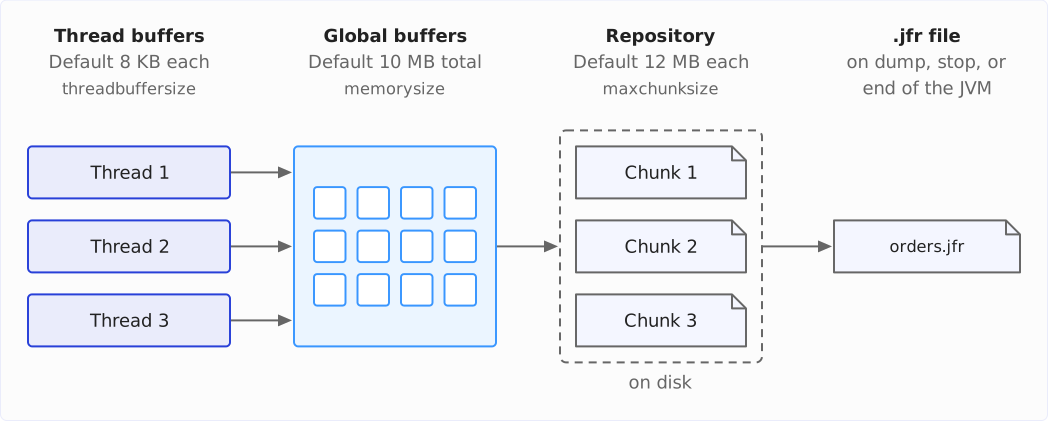
An event does not land directly in the .jfr file. It passes through four stations, and the size of each of the first three stations is set by a parameter:
- Each thread first writes its events into its own thread buffer. Its size is set by
threadbuffersize. The default is 8 KB, rounded up to a whole memory page – on a Mac with an Apple processor, whose memory pages are 16 KB, this makes it 16 KB. - When the thread buffer is full, the JVM transfers its content to one of the global buffers. By default, there are 20 of them at 512 KB each. Together, they are as large as
memorysize, 10 MB by default. - When a global buffer is full, a Flight Recorder thread writes it to a chunk file in the so-called repository on disk. A chunk grows up to
maxchunksize, 12 MB by default, then the next one begins. - Finally, on a dump, on
JFR.stop, or on exit, the JVM assembles the chunks into the.jfrfile.
The diagram shows these stations from left to right, with the parameters that set their size. The dashed frame groups the chunk files in the repository:
The repository is located in the operating system’s temp directory, in a subdirectory named after date, time, and process ID. The system property jdk.jfr.repository reveals exactly where:
$ jcmd 66027 VM.system_properties | grep jdk.jfr.repository
jdk.jfr.repository=/private/var/folders/wt/np9sw9515z117kn393z4t4k00000gn/T/2026_10_31_08_41_38_66027
How many events fit into a station? The Flight Recorder does not count events, it counts bytes. In the example’s recording, 8,588 OrderEvents take up 156,953 bytes – about 18 bytes per event. A jdk.SocketRead event, with host, port, and the reference to its stack trace, takes up about 43 bytes. The whole minute with profile results in a file of 2.7 MB.
You set the sizes of the buffers and chunks with -XX:FlightRecorderOptions, e.g., -XX:FlightRecorderOptions:memorysize=20m.
The Ring Buffer: on Disk or in RAM
When a recording reaches its limit, the Flight Recorder deletes the oldest data – it works as a ring buffer. Where this ring is located is decided by the disk parameter. It is always exactly one place.
With disk=true, the default, RAM is only a transit station, and the ring is the repository on disk. maxage and maxsize limit it. If you set neither of the two limits, the JVM takes 250 MB – this is what the log line “No limit specified, using maxsize=250MB as default” reports.
The Flight Recorder always deletes whole chunks. This has a consequence that becomes noticeable with little data: With maxage=20s, a dump after 64 seconds still contained all 64 seconds. With default, the example writes a good 30 KB per second, so after one minute the first chunk was still far from its 12 MB – and a chunk that is still growing is not deleted.
With maxchunksize=1m, you can see the ring at work. The table shows the chunk files in the repository with their size:
| After | Chunk files in the repository |
|---|---|
| 34 s | 2026_10_27_23_07_38.jfr (1,296,447 bytes)2026_10_27_23_08_07.jfr (394,770 bytes) |
| 64 s | 2026_10_27_23_08_07.jfr (1,295,986 bytes)2026_10_27_23_08_38.jfr (352,777 bytes) |
| 94 s | 2026_10_27_23_08_38.jfr (1,309,288 bytes)2026_10_27_23_09_11.jfr (254,771 bytes) |
Each file carries the start time of its chunk in its name. At a good 1 MB, a new chunk begins, and a chunk whose end lies further back than maxage drops out of the ring. A dump after 124 seconds with maxage=30s only contained the youngest chunk, 2026_10_27_23_09_11.jfr, and thus the data of the last 32 seconds.
So with maxage, a dump contains at least the data of the last maxage. Because the Flight Recorder only deletes whole chunks, it can also be more – in the example, 32 instead of 30 seconds. With maxsize, on the other hand, it stays below the limit: With maxsize=2m, there were never more than two chunk files in the repository, and a dump after three minutes contained two chunks with a total of 1.8 MB and 34 seconds.
With disk=false, the Flight Recorder writes nothing to disk. The ring is then the global buffers in RAM, and their size is memorysize, 10 MB by default. maxage and maxsize have no effect; the JVM warns at startup:
[0.118s][warning][jfr,start] Option maxage has no effect with disk=false.In the example, the 10 MB are enough for the whole minute. With memorysize=1m and a dump after 62 seconds, on the other hand, the first 19 seconds were missing: The first OrderEvent in the dump is from 23:11:29; the recording had begun at 23:11:10. jfr summary still shows 23:11:10 as the start – the start time of the recording, not that of the oldest event that is still left.
For continuous use in production, I recommend disk=true with a maxage that covers the time you want to look back on after an incident, and a maxsize that your disk space can handle:
$ java -XX:StartFlightRecording:name=continuous,maxage=1h,maxsize=500m ...disk=false is worthwhile where the application should not or cannot write to disk. Then you should choose memorysize large enough to hold the time you need – a trial recording shows how much that is.
Three Levels of Configuration
The parameters in this chapter belong to three levels, and you set each level in a different place:
| Level | Where | Parameters |
|---|---|---|
| one recording | -XX:StartFlightRecording,jcmd … JFR.start | filename, name, duration, delay, settings, disk, maxage, maxsize, dumponexit, path-to-gc-roots |
| the whole JVM | -XX:FlightRecorderOptions,jcmd … JFR.configure | memorysize, maxchunksize, threadbuffersize (only via -XX:FlightRecorderOptions), repository (with JFR.configure: repositorypath), stackdepth, preserve-repository |
| individual events | .jfc file, <event>#<setting>=<value>, .jfc options | intervals, thresholds, rate limits, stack traces |
Several recordings can run at the same time, with their own limits and their own settings. However, they share the JVM’s thread buffers and global buffers. Their sizes can no longer be changed once the Flight Recorder has started – so JFR.configure only affects them before the first recording starts.
stackdepth sets the maximum number of frames in a stack trace, 64 by default.
Opening a Recording
A .jfr file is binary. You open it with the jfr command from the JDK or with JDK Mission Control.
The jfr Command: summary, view, print
jfr summary shows which events are in the file and how often. The following output belongs to the recording with profile that I analyze in the next chapter; I cut it off after the first six event types:
$ jfr summary orders.jfr

 Version: 2.1
 Chunks: 1
 Start: 2026-10-27 23:15:37 (UTC)
 Duration: 60 s

 Event Type                              Count  Size (bytes)
=============================================================
 jdk.ObjectAllocationSample              17098        265113
 jdk.GCPhaseParallel                     15307        394394
 jdk.ThreadSleep                          8602        175674
 eu.happycoders.Order                     8588        156953
 jdk.SocketRead                           8588        372966
 jdk.JavaMonitorEnter                     8557        200485
 ...
At the top are the version of the file format, the number of chunks, and the start (in UTC) and duration of the recording; below that, for each event type, how often it occurs and how many bytes it takes up in the file – sorted in descending order by count.
jfr view summarizes the events into tables. In Java 27, it knows 82 predefined views, grouped by the JVM (e.g., gc-pauses, safepoints), the environment (e.g., cpu-load, container-memory-usage), and the application (e.g., hot-methods, contention-by-site). jfr help view lists them all. The call for hot-methods, for example, is:
$ jfr view hot-methods orders.jfrI show and explain the output of this call in the section Where Does the Application Spend CPU Time?
With --width, you set the width of the table in characters. I created all tables in this article with --width 86 so that they fit into the column without horizontal scrolling; in some places, jfr therefore shortens a method name with (...).
jfr print prints the individual events. --events selects them, --stack-depth sets how many frames of a stack trace appear (five by default), and --json or --xml delivers the events in machine-readable form:
$ jfr print --events jdk.SocketRead --stack-depth 12 orders.jfrYou can find a jdk.SocketRead event from this output in the section What Are the Threads Waiting For?, and the outputs for the other event types in the remaining sections of the next chapter.
Without a File: JFR.view and report-on-exit
You don’t necessarily need a file for a view. With jcmd … JFR.view, you can also display it directly from a running recording (here, the width is called width=):
$ jcmd 66027 JFR.view width=86 hot-methods
66027:

                          Java Methods that Execute the Most

Method                                                                Samples Percent
--------------------------------------------------------------------- ------- -------
java.util.ArrayList.indexOfRange(Object, int, int)                         81  33.61%
eu.happycoders.jfr.OrderService.formatReceipt(...)                         50  20.75%
java.util.concurrent.ConcurrentHashMap.putVal(...)                          5   2.07%
jdk.jfr.internal.event.EventWriter.getEventWriter()                         4   1.66%
jdk.jfr.internal.event.EventWriter.putLong(long)                            4   1.66%
And since Java 25, report-on-exit prints a view when the JVM exits – handy for a test run after which you only want one question answered. The contention-by-site view, for example, shows at which places in the code threads have waited to be allowed to enter a synchronized block – how often, how long on average, and how long at most (more on this in the section What Are the Threads Waiting For?). This is how you print it at the end of a run:
$ java -XX:StartFlightRecording:report-on-exit=contention-by-site \
       -cp target/classes eu.happycoders.jfr.OrderProcessing 20
...
Processed 3,265 orders

                               Contention by Site

StackTrace                                                Count    Avg.    Max.
--------------------------------------------------------- ----- ------- -------
eu.happycoders.jfr.InvoiceNumberGenerator.next()          2,690 21.8 ms 41.3 ms
report-on-exit may appear several times, once per view.
JDK Mission Control
JDK Mission Control (JMC) is the graphical user interface for the Flight Recorder. It is not part of the JDK; you have to download it separately. JMC opens .jfr files, connects to running JVMs and starts recordings there, and its “Automated Analysis” page automatically evaluates a recording against known problem patterns.
For everything in this article, jfr is enough. I will show how to analyze the same recording in JMC – with flame graph, allocation tree, and GC timeline – in a separate article on JDK Mission Control.
Five Questions for the Recording
For the analysis, I recorded the example with settings=profile – for a targeted profiling run, this is the right choice:
$ java -XX:StartFlightRecording:filename=orders.jfr,settings=profile \
       -cp target/classes eu.happycoders.jfr.OrderProcessing 60
...
Each of the following sections answers one question about this file.
Where Does the Application Spend CPU Time?
The hot-methods view shows in which methods the threads were found most often:
$ jfr view hot-methods orders.jfr

                          Java Methods that Execute the Most

Method                                                                Samples Percent
--------------------------------------------------------------------- ------- -------
java.util.ArrayList.indexOfRange(Object, int, int)                        406  41.30%
eu.happycoders.jfr.OrderService.formatReceipt(...)                        151  15.36%
eu.happycoders.jfr.OrderService.process(Order)                            128  13.02%
java.util.ArrayList.grow(int)                                              17   1.73%
java.lang.String$$StringConcat.0x00000700010c8000.prepend(...)             10   1.02%
The table is based on sampling: Every 10 ms (every 20 ms with default), the Flight Recorder reads the stack traces of the threads that are currently executing Java code and stores them as jdk.ExecutionSample. The “Samples” column indicates how often a method was at the very top of the stack. Threads that are waiting – for a lock, for a response over the network, for Thread.sleep() – do not appear in this statistic.
At the very top, with 41%, is not a method of the example but ArrayList.indexOfRange() from the JDK. This is often the case: The time passes in a JDK method, the cause lies in the caller. jfr print shows it with the stack trace of a sample – such a sample follows further below.
But first, a second line stands out: process() with 13%, although process() itself only calls other methods. 125 of the 128 samples that jfr print shows for process() at the very top of the stack carry line number 44 – that is the line with the call to isBlocked().
The reason lies in the JIT compiler. It has built isBlocked() together with contains() and indexOfRange() into process() (inlining). By default, the JIT compiler records which method and which line a piece of machine code belongs to only for certain places, essentially for the safepoints. The Flight Recorder assigns a sample that lands between two such places to the next one – here, the call to isBlocked() in process().
The diagnostic option -XX:+DebugNonSafepoints makes the JIT compiler store this mapping for the entire machine code. It is only allowed together with -XX:+UnlockDiagnosticVMOptions:
$ java -XX:+UnlockDiagnosticVMOptions -XX:+DebugNonSafepoints \
       -XX:StartFlightRecording:filename=orders-dns.jfr,settings=profile \
       -cp target/classes eu.happycoders.jfr.OrderProcessing 60
...
$ jfr view hot-methods orders-dns.jfr

                          Java Methods that Execute the Most

Method                                                                Samples Percent
--------------------------------------------------------------------- ------- -------
java.lang.String.equals(Object)                                           300  32.93%
eu.happycoders.jfr.OrderService.formatReceipt(...)                        132  14.49%
java.util.ArrayList.indexOfRange(Object, int, int)                        126  13.83%
eu.happycoders.jfr.OrderService.process(Order)                             53   5.82%
java.util.Random.next(int)                                                 10   1.10%
Now String.equals() is at the top, and process() has dropped to 6%. The following jfr print command prints all events of the type jdk.ExecutionSample. Among them, I looked for a sample with String.equals() at the very top – it shows the whole chain down into the example’s code:
$ jfr print --events jdk.ExecutionSample --stack-depth 8 orders-dns.jfr
...
jdk.ExecutionSample {
  startTime = 23:16:38.545 (2026-10-27)
  sampledThread = "pool-1-thread-8" (javaThreadId = 52)
  state = "STATE_RUNNABLE"
  stackTrace = [
    java.lang.String.equals(Object) line: 2170
    java.util.ArrayList.indexOfRange(Object, int, int) line: 300
    java.util.ArrayList.indexOf(Object) line: 287
    java.util.ArrayList.contains(Object) line: 276
    eu.happycoders.jfr.OrderService.isBlocked(String) line: 64
    eu.happycoders.jfr.OrderService.process(Order) line: 44
    eu.happycoders.jfr.OrderService.processUntil(Instant, OrderGenerator) line: 30
    eu.happycoders.jfr.OrderProcessing.lambda$main$0(OrderService, Instant, OrderGenerator) line: 22
    ...
  ]
}
...
String.equals() and indexOfRange() together account for 47% of all samples (in the output of jfr view hot-methods above): Almost half of the time in which the program executes Java code goes into the linear search through the block list. A HashSet instead of the ArrayList turns this into a hash lookup that is presumably much faster.
I recommend -XX:+DebugNonSafepoints for every profiling run in which you are looking for the method or line that costs time. Without the option, the samples of inlined methods end up with the caller – in the example, with process() instead of String.equals().
Incidentally, sampling takes its samples at fixed intervals of wall-clock time and only counts threads that are currently executing Java code. Since Java 25, the Flight Recorder can additionally take samples by consumed CPU time, with the jdk.CPUTimeSample event – experimental for now and only on Linux. On macOS, the JVM reports “CPU time method sampling not supported in JFR on your platform” when it is switched on. More on this in the section JFR CPU-Time Profiling of the article on Java 25.
Which Code Creates the Most Objects?
The Flight Recorder also records object allocations as samples, as jdk.ObjectAllocationSample. Each sample carries a weight (weight): the bytes that the thread has allocated since its previous sample – usually for many objects, not just for the one at which the sample was taken. According to the description of the event, the sum of the weights over many samples results in a statistically accurate picture. The allocation-by-class view sums the weights by class:
$ jfr view allocation-by-class orders.jfr

                                 Allocation by Class

Object Type                                                       Allocation Pressure
----------------------------------------------------------------- -------------------
byte[]                                                                         87.20%
java.lang.String                                                                3.43%
char[]                                                                          1.26%
java.lang.String[]                                                              0.89%
sun.net.www.protocol.http.HttpURLConnection                                     0.69%
87% of the allocated bytes are byte[]. Where the allocations come from – across all classes – is shown by the allocation-by-site view:
$ jfr view allocation-by-site orders.jfr

                                  Allocation by Site

Method                                                            Allocation Pressure
----------------------------------------------------------------- -------------------
jdk.internal.misc.Unsafe.allocateUninitializedArray(Class, int)                77.53%
java.io.InputStream.readNBytes(int)                                             2.98%
java.util.Arrays.copyOfRange(byte[], int, int)                                  1.49%
java.io.BufferedInputStream.getBufIfOpen(boolean)                               1.26%
java.lang.String$$StringConcat.0x00000700010c8000.concat(...)                   1.26%
Still, the top line concerns only byte[]: All samples with allocateUninitializedArray() at the very top carry the class byte[]. Here, too, a JDK method is at the top, because allocation-by-site also groups by the top frame. jfr print again shows the caller:
$ jfr print --events jdk.ObjectAllocationSample --stack-depth 6 orders.jfr
...
jdk.ObjectAllocationSample {
  Context: Order.orderId = 200
  startTime = 23:15:37.921 (2026-10-27)
  objectClass = byte[] (classLoader = bootstrap)
  weight = 351.6 kB
  eventThread = "pool-1-thread-1" (javaThreadId = 45)
  stackTrace = [
    jdk.internal.misc.Unsafe.allocateUninitializedArray(Class, int) line: 1422
    java.lang.StringConcatHelper.newArray(int) line: 283
    java.lang.StringConcatHelper.newArrayWithSuffix(String, int, byte) line: 309
    eu.happycoders.jfr.OrderService.formatReceipt(Order, int, BigDecimal, long) line: 71
    eu.happycoders.jfr.OrderService.process(Order) line: 47
    eu.happycoders.jfr.OrderService.processUntil(Instant, OrderGenerator) line: 30
  ]
}
...
According to the stack trace, the allocation comes from the formatReceipt() method, line 71. This line is receipt += line + "\n". Each of these concatenations creates a new String with a new byte[] that copies the entire text so far – with 149 line items, 149 times. A StringBuilder or String.join(), on the other hand, creates the text in a single pass.
The line Context: Order.orderId = 200 comes from the example’s custom event; the section Custom Events shows what it is all about.
What Are the Threads Waiting For?
The two previous questions only concerned the computing time of the threads. In the example, however, an order takes 56 ms in the median, and the thread spends only a small part of that computing. What happens in the remaining time is shown by the latencies-by-type view:
$ jfr view latencies-by-type orders.jfr

                                  Latencies by Type

Event Type                                     Count Average    P 99 Longest    Total
---------------------------------------------- ----- ------- ------- ------- --------
Java Thread Sleep                              8,602 27.4 ms 22.6 ms  5.01 s 3 m 56 s
Java Monitor Blocked                           8,557 26.6 ms 34.4 ms 52.6 ms 3 m 47 s
Java Thread Park                               1,006  226 ms  328 ms 1 m 0 s 3 m 47 s
Socket Read                                    8,588 21.3 ms 22.9 ms 50.2 ms  3 m 3 s
Java Monitor Wait                                  6  10.0 s  10.0 s  10.0 s  1 m 0 s
Two lines belong to the worker threads, i.e., the eight threads that process the orders:
- Java Monitor Blocked: 8,557 times, a thread waited to be allowed to enter a
synchronizedblock, on average for 26.6 ms. - Socket Read: 8,588 times, a thread waited for data from the network, on average for 21.3 ms.
Together, that is 48 ms on average – for an order that takes 56 ms on average. The remaining 8 ms do not appear in the table: For 5 ms of them, the thread itself holds the lock while the generator fetches the invoice number from the simulated database. This waiting time is below the 10 ms threshold at which profile starts recording “Java Thread Sleep”. The thread spends the remaining 3 ms or so computing: block list, HTTP request, and invoice text.
The other lines of the latencies-by-type view come from the test setup and the JDK: Almost all entries under “Java Thread Sleep” come from the simulated shipping service, which sleeps 20 ms before each response; the longest “Java Thread Park” with one minute is the main thread, which waits for the workers to finish.
Which synchronized block holds the threads up is shown by the contention-by-site view:
$ jfr view contention-by-site orders.jfr

                                  Contention by Site

StackTrace                                                      Count    Avg.    Max.
--------------------------------------------------------------- ----- ------- -------
eu.happycoders.jfr.InvoiceNumberGenerator.next()                8,557 26.6 ms 52.6 ms
There is only one such place, the InvoiceNumberGenerator.next() method. The threads waited there 8,557 times, on average for 26.6 ms and at most for 52.6 ms.
A single jdk.JavaMonitorEnter event additionally names the thread that held the lock in the previousOwner field:
$ jfr print --events jdk.JavaMonitorEnter --stack-depth 3 orders.jfr
jdk.JavaMonitorEnter {
  Context: Order.orderId = 104
  startTime = 23:15:37.816 (2026-10-27)
  duration = 15.0 ms
  monitorClass = eu.happycoders.jfr.InvoiceNumberGenerator (classLoader = app)
  previousOwner = "pool-1-thread-6" (javaThreadId = 50)
  address = 0x7BDB2CEE60
  eventThread = "pool-1-thread-5" (javaThreadId = 49)
  stackTrace = [
    eu.happycoders.jfr.InvoiceNumberGenerator.next() line: 9
    eu.happycoders.jfr.OrderService.process(Order) line: 46
    eu.happycoders.jfr.OrderService.processUntil(Instant, OrderGenerator) line: 30
    ...
  ]
}
...
The InvoiceNumberGenerator holds the lock for 5 ms on every call: In its synchronized method next(), it simulates the database access with Thread.sleep(5). So it cannot issue more than 200 invoice numbers per second, and the eight threads queue up. The remedy is a sequence in the database or a generator that reserves numbers in blocks – with blocks of 100 numbers, only every hundredth call then waits for the database.
The socket-reads-by-host view breaks down the waiting time for the network by remote host:
$ jfr view socket-reads-by-host orders.jfr

                                 Socket Reads by Host

Host                                                                 Reads Total Read
-------------------------------------------------------------------- ----- ----------
localhost                                                            8,588   662.6 kB
All 8,588 reads went to localhost, where the simulated shipping service runs, and read a total of 662.6 kB.
And a single jdk.SocketRead event leads to the caller via its stack trace:
$ jfr print --events jdk.SocketRead --stack-depth 12 orders.jfr
...
jdk.SocketRead {
  Context: Order.orderId = 37606
  startTime = 23:15:58.708 (2026-10-27)
  duration = 20.8 ms
  host = "localhost"
  address = "127.0.0.1"
  port = 60419
  timeout = 0 s
  bytesRead = 79 bytes
  endOfStream = false
  eventThread = "pool-1-thread-7" (javaThreadId = 51)
  stackTrace = [
    java.io.BufferedInputStream.fill() line: 289
    java.io.BufferedInputStream.read1(byte[], int, int) line: 330
    java.io.BufferedInputStream.read(byte[], int, int) line: 388
    sun.net.www.http.HttpClient.parseHTTPHeader(MessageHeader, HttpURLConnection) line: 812
    sun.net.www.http.HttpClient.parseHTTP(MessageHeader, HttpURLConnection) line: 744
    sun.net.www.protocol.http.HttpURLConnection.getInputStream0() line: 1408
    sun.net.www.protocol.http.HttpURLConnection.getInputStream() line: 1311
    java.net.URL.openStream() line: 1260
    eu.happycoders.jfr.ShippingClient.shippingCost(Order) line: 19
    eu.happycoders.jfr.OrderService.process(Order) line: 45
    eu.happycoders.jfr.OrderService.processUntil(Instant, OrderGenerator) line: 30
    eu.happycoders.jfr.OrderProcessing.lambda$main$0(OrderService, Instant, OrderGenerator) line: 22
    ...
  ]
}
...
The 20.8 ms are the response time of the shipping service, and that cannot be sped up on the caller’s side. The waiting time would disappear with a cache for the shipping costs. And with virtual threads, a waiting thread would not block a platform thread.
There is a separate view for virtual threads, pinned-threads: It shows where a virtual thread blocked while it was bound to its carrier thread – how to find such pinning is described in the section Detecting Pinning of the article on virtual threads.
What Is Holding On to Memory?
The gc-pauses view answers the question of whether the garbage collector slows the application down. In the example, it does not:
$ jfr view gc-pauses orders.jfr

GC Pauses
---------

Total Pause Time: 79.1 ms

Number of Pauses: 48

Minimum Pause Time: 0.698 ms

Median Pause Time: 1.41 ms
...
Maximum Pause Time: 5.83 ms
48 pauses with a total of 79 ms in one minute are 0.13% of the runtime – so little that working on the garbage collector is not worthwhile here. The gc view, which lists every garbage collection with the heap before and after, provides a hint of another problem. The following output shows the first three and the last three lines:
$ jfr view gc orders.jfr

                                 Garbage Collections

Start    GC ID GC Name                     Heap Before GC Heap After GC Longest Pause
-------- ----- --------------------------- -------------- ------------- -------------
23:15:37     1 G1New                               9.8 MB        3.1 MB       1.73 ms
23:15:37     2 G1New                              11.1 MB       10.9 MB       2.12 ms
23:15:38     3 G1New                              42.9 MB       15.4 MB       5.83 ms
...
23:16:33    46 G1New                              79.2 MB       40.1 MB       1.72 ms
23:16:35    47 G1New                              80.1 MB       40.3 MB       1.25 ms
23:16:36    48 G1New                              72.3 MB       40.9 MB       1.51 ms
The “Heap After GC” column grows from 3.1 to 40.9 MB in one minute. What remains after a garbage collection is still referenced – and if this remainder grows steadily, something is holding on to more and more objects. This points to a memory leak.
The Flight Recorder can also answer the question of what is holding on to the objects. It takes samples of allocated objects and reports those objects that are still alive as jdk.OldObjectSample – with profile, including the stack trace of the allocation. An object counts as old if it was allocated before the last garbage collection, i.e., it has survived it.
Each sample belongs to exactly one object. The Flight Recorder keeps at most 256 such samples at the same time; if the garbage collector removes an object, its sample is dropped. Which samples it keeps when all 256 slots are occupied is decided by an internal weight that is not in the recording: A new sample weighs as much as has been allocated since the previous sample. If a sample is dropped, the Flight Recorder adds its weight to the next younger one. And a new sample displaces the sample with the smallest weight, provided its own is not even smaller. In this way, an object that lives for a long time inherits the weight of many removed objects and is hardly ever displaced – and it is precisely such objects that are candidates for a memory leak.
Where an object was created is revealed by the sample’s stack trace. The path from the GC root to the object, i.e., the chain of references that ultimately keeps the object alive, is only determined by the Flight Recorder if you specify path-to-gc-roots=true. It is best to specify the option with a JFR.dump on the running JVM. When the JVM exited, the Flight Recorder found a path for only 8 of 198 samples in my experiment; with a dump from the running JVM, on the other hand, it found one for almost all: for 214 of 215:
$ jcmd 99180 JFR.dump name=orders filename=leak.jfr path-to-gc-roots=trueA sample from this dump looks like this:
$ jfr print --events jdk.OldObjectSample --stack-depth 6 leak.jfr
...
jdk.OldObjectSample {
  Context: Order.orderId = 106502
  startTime = 23:21:03.522 (2026-10-27)
  duration = 11.1 ms
  allocationTime = 23:20:46.395 (2026-10-27)
  objectSize = 4.0 kB
  objectAge = 17.1 s
  lastKnownHeapUsage = 34.4 MB
  object =  [
    byte[4094]
    value : java.lang.String
    val : java.util.concurrent.ConcurrentHashMap$Node
    [10567] : java.util.concurrent.ConcurrentHashMap$Node[16384]
    table : java.util.concurrent.ConcurrentHashMap
    receiptCache : eu.happycoders.jfr.OrderService
  ]
  arrayElements = 4094
  root = {
    description = "Thread Name: main"
    system = "Threads"
    type = "Stack Variable"
  }
  eventThread = "pool-1-thread-3" (javaThreadId = 47)
  stackTrace = [
    jdk.internal.misc.Unsafe.allocateUninitializedArray(Class, int) line: 1422
    java.lang.StringConcatHelper.newArray(int) line: 283
    java.lang.StringConcatHelper.newArrayWithSuffix(String, int, byte) line: 309
    eu.happycoders.jfr.OrderService.formatReceipt(Order, int, BigDecimal, long) line: 73
    eu.happycoders.jfr.OrderService.process(Order) line: 47
    eu.happycoders.jfr.OrderService.processUntil(Instant, OrderGenerator) line: 30
  ]
}
...
You read the path from the GC root to the object in the object field from bottom to top: The receiptCache field of an OrderService references a ConcurrentHashMap, whose table references an entry whose value is a String – and its byte[] with 4,094 bytes is the object that has already been alive for 17 seconds. The OrderService itself is held by a local variable of the main thread (root). The stack trace below shows where the object was created: in formatReceipt().
205 of the 215 samples in the dump hang on the receiptCache field in this way. The cache grows because the example never removes anything from it. To keep from becoming a memory leak, a cache needs an upper limit or an expiration date for its entries.
I don’t show the memory-leaks-by-class and memory-leaks-by-site views here. They group the samples by class or by the method in which they were created – with one line per class or method, but without a count. In the output for the dump, formatReceipt() therefore appears on equal footing with methods like loadBlockedProducts(), whose objects live for the entire runtime as planned. Only jfr print shows the path that explains the leak.
Which Exceptions Are Thrown?
A caught exception that the catch block doesn’t log leaves no trace in the log. It still shows up in the Flight Recorder recording, and the exception-by-type view prints it with its frequency:
$ jfr view exception-by-type orders.jfr

                                  Exceptions by Type

Class                                                                            Count
----------------------------------------------------------- --------------------------
java.lang.NumberFormatException                                                  1,661
java.lang.NoSuchMethodError                                                         90
java.lang.IncompatibleClassChangeError                                               4
java.lang.NoSuchMethodException                                                      1
That is 1,661 NumberFormatExceptions in one minute, almost 28 per second. The three other exception types come from the JDK: According to the exception-by-site view, they are thrown almost exclusively by MethodHandleNatives.resolve() when the JDK resolves method handles internally:
$ jfr view exception-by-site orders.jfr

                                  Exceptions by Site

Method                                                                          Count
------------------------------------------------------------------------------- -----
java.lang.NumberFormatException.forInputString(String, int)                     1,661
java.lang.invoke.MethodHandleNatives.resolve(MemberName, Class, int, boolean)      94
java.lang.Class.getMethod(String, Class[])                                          1
For the NumberFormatException, too, the view only names a JDK method, NumberFormatException.forInputString(). An event with a deeper stack trace shows the caller:
$ jfr print --events jdk.JavaExceptionThrow --stack-depth 10 orders.jfr
...
jdk.JavaExceptionThrow {
  Context: Order.orderId = 12807
  startTime = 23:15:45.021 (2026-10-27)
  message = "For input string: "5 pcs""
  thrownClass = java.lang.NumberFormatException (classLoader = bootstrap)
  eventThread = "pool-1-thread-8" (javaThreadId = 52)
  stackTrace = [
    java.lang.Throwable.<init>(String) line: 286
    java.lang.Exception.<init>(String) line: 67
    java.lang.RuntimeException.<init>(String) line: 63
    java.lang.IllegalArgumentException.<init>(String) line: 50
    java.lang.NumberFormatException.<init>(String) line: 54
    java.lang.NumberFormatException.forInputString(String, int) line: 67
    java.lang.Integer.parseInt(String, int) line: 529
    java.lang.Integer.parseInt(String) line: 626
    eu.happycoders.jfr.OrderService.parseQuantity(String) line: 57
    eu.happycoders.jfr.OrderService.process(Order) line: 43
    ...
  ]
}
...
parseQuantity() uses the exception as control flow: For every quantity with a unit, Integer.parseInt() throws a NumberFormatException, and the catch block sets the quantity to 1. If invalid input occurs regularly, you should detect it before parsing instead of catching the exception.
With exceptions, keep in mind the rate limit from the section What Gets Recorded: With default, the Flight Recorder records at most 100 exceptions per second. If more are thrown, the count is lower than the actual number.
Measuring Exactly Instead of Counting Samples: Method Timing
Sampling tells you where the time goes, but not how often a method is called and how long a call takes. That is what Method Timing (JEP 520), available since Java 25, is for: The Flight Recorder adds extra code to methods selected by a filter and measures every single call.
You specify the filter via the .jfc option method-timing – here for isBlocked(), with a run of 20 seconds:
$ java -XX:StartFlightRecording:filename=timing.jfr,method-timing=eu.happycoders.jfr.OrderService::isBlocked \
       -cp target/classes eu.happycoders.jfr.OrderProcessing 20
Processed 3,260 orders
$ jfr view --width 98 method-timing timing.jfr

                                          Method Timing

Timed Method                                   Invocations Minimum Time Average Time Maximum Time
---------------------------------------------- ----------- ------------ ------------ ------------
eu.happycoders.jfr.OrderService.isBlocked(...)       3,260  0.173000 ms  0.646000 ms  3.190000 ms
For this table, I used --width 98, because at 86 characters, jfr shortens the method name down to the class.
isBlocked() was called 3,260 times, once per order, and takes 0.646 ms on average. The filter can be a method as in the example (Class::method), but also a whole class or an annotation like @jakarta.ws.rs.GET; you separate multiple filters with a semicolon. The sister option method-trace records every call with a stack trace instead of the times.
To do this, the Flight Recorder modifies the code of every method that the filter covers, and each of their calls costs additional time. So choose the filter as narrowly as your question allows. More on this in the section JFR Method Timing & Tracing of the article on Java 25.
Custom Events
The JDK events don’t know your business logic. An order, a request, a batch job – for things like this, you can write a custom event. The example defines one for orders:
@Name("eu.happycoders.Order")
@Label("Order")
class OrderEvent extends Event {

  @Label("Order ID")
  @Contextual
  long orderId;
}
An event class extends jdk.jfr.Event. @Name sets the name under which the event appears in the recording, @Label a readable title for the event and the field. In process(), the example creates an OrderEvent for each order, sets the order number, and calls begin() before and commit() after processing. The time in between is the duration of the event:
void process(Order order) throws InterruptedException {
  OrderEvent event = new OrderEvent();
  event.orderId = order.id();
  event.begin();
  ...
  event.commit();
  processedOrders.incrementAndGet();
}
A custom event works with all the tools in this article. jfr view shows it under its name eu.happycoders.Order:
$ jfr view eu.happycoders.Order orders.jfr

                                        Order

Start Time Duration Event Thread    Stack Trace                              Order ID
---------- -------- --------------- ---------------------------------------- --------
23:15:37     114 ms pool-1-thread-1 eu.happycoders.jfr.OrderService.proce...      100
23:15:37    98.5 ms pool-1-thread-3 eu.happycoders.jfr.OrderService.proce...      102
23:15:37     121 ms pool-1-thread-8 eu.happycoders.jfr.OrderService.proce...      107
...
I calculated the figures on the duration of an order in this article from the durations of these events: 8,588 orders, median 56.1 ms, 99th percentile 64.4 ms. jfr has no view that prints the median and percentiles for a custom event. I therefore exported the events with jfr print --json --events eu.happycoders.Order orders.jfr and evaluated the durations myself.
The @Contextual annotation on orderId has existed since Java 25. As long as an OrderEvent is running – between begin() and commit() – the Flight Recorder attaches the order number to every other event of the same thread. That is where the lines Context: Order.orderId = … in the outputs of the previous sections come from: For every wait for the lock, every network request, and every exception, you know for which order it happened. In the same way, you connect your application’s trace and span IDs with the JVM’s events. More on this in the section Context for Your Own JFR Events with @Contextual of the article on Java 25.
If an event produces very many entries, the @Throttle annotation – also available since Java 25 – limits its number per second, e.g., with @Throttle("300/s"). The value of the annotation is only the default. In a custom .jfc file, you can change it with the throttle setting – but only for event classes annotated with @Throttle. If the example’s OrderEvent had the annotation, this is what it would look like:
<event name="eu.happycoders.Order">
  <setting name="throttle">100/s</setting>
</event>
This works on the command line as well. Because a custom event is not in any of the .jfc files that come with the JDK, you prefix the setting with a + there; without the +, the JVM only prints a warning and ignores the setting:
$ java -XX:StartFlightRecording:+eu.happycoders.Order#throttle=100/s ...Reading Along in the Running Program: RecordingStream
Since Java 14 (JEP 349), an application can read the events of its own JVM while they occur – without writing them to a file. The RecordingStream class starts a recording and passes every event that you enable in it to a handler that you register for it.
The following program reports every order that takes longer than 80 ms:
public class MonitoredOrderProcessing {

  static void main(String[] args) throws Exception {
    try (RecordingStream stream = new RecordingStream()) {
      stream.enable("eu.happycoders.Order").withThreshold(Duration.ofMillis(80));
      stream.onEvent(
          "eu.happycoders.Order",
          event ->
              System.out.printf(
                  "Slow order %d: %d ms%n",
                  event.getLong("orderId"), event.getDuration().toMillis()));
      stream.startAsync();

      OrderProcessing.main(args);
    }
  }
}
enable() switches the event on, withThreshold() filters out all orders under 80 ms, onEvent() registers the handler, and startAsync() starts the recording; the handlers then run in a separate thread. The output after one minute:
Slow order 100: 82 ms
Slow order 102: 87 ms
Slow order 103: 93 ms
Slow order 105: 99 ms
Slow order 106: 106 ms
Slow order 104: 112 ms
Processed 9,809 orders
Only the first orders, right after the JVM started, were slow. In this way, you can derive metrics from JFR events and pass them on, e.g., to a monitoring system.
You read the events of another JVM – for example, a server you want to monitor from the outside – with the RemoteRecordingStream class from the jdk.management.jfr module, available since Java 16. It connects to that JVM via JMX (MBeanServerConnection) and offers the same methods as RecordingStream.
Passing On a Recording
A recording contains more than performance data. The Flight Recorder writes, among other things, the environment variables, the system properties, and the command line of the JVM into it – in the example’s recording, 79 environment variables and 15 system properties. If there is a password or a token among them, it is in plain text in every copy of the file.
Since Java 27, the Flight Recorder automatically replaces values that look like passwords or tokens with [REDACTED] (JEP 536). Which names and arguments it recognizes for this and how you adjust the patterns is described in the section JFR In-Process Data Redaction of the article on Java 27.
For everything these patterns don’t catch, jfr scrub (since Java 19) removes events from a copy of the file. The following command removes the environment variables and system properties:
$ jfr scrub --exclude-events InitialEnvironmentVariable,InitialSystemProperty \
            orders.jfr orders-scrubbed.jfr
Scrubbed recording file written to:
<path>/orders-scrubbed.jfr
Removed events:
jdk.InitialEnvironmentVariable 79/79
jdk.InitialSystemProperty      15/15
You can also remove events by category (--exclude-categories) or by thread (--exclude-threads) – or, conversely, keep only specific ones with --include-….
JFR in the Java Versions
The following table shows from which Java version on the tools and options in this article are available:
| Version | New for the Flight Recorder |
|---|---|
| Java 11 | Flight Recorder in OpenJDK (JEP 328) |
| Java 12 | jfr command with print and summary (also in Java 11 from 11.0.6) |
| Java 14 | RecordingStream (JEP 349) |
| Java 16 | RemoteRecordingStream |
| Java 17 | jfr configure, event settings and .jfc options directly on the command line |
| Java 19 | jfr scrub |
| Java 21 | jfr view and jcmd … JFR.view |
| Java 23 | jdk.SerializationMisdeclaration event, see Finding Misdeclarations in the article on serialization |
| Java 25 | Cooperative Sampling (JEP 518), Method Timing & Tracing (JEP 520), CPU-Time Profiling on Linux, experimental (JEP 509), rate limits per second and @Throttle, @Contextual, report-on-exit |
| Java 27 | automatic redaction of passwords and tokens (JEP 536) |
Summary
The Java Flight Recorder has been part of OpenJDK since Java 11 and, with the standard settings, records what happens in the JVM at typically less than 1% overhead. You start it with -XX:StartFlightRecording at JVM startup or with jcmd <pid> JFR.start on a running JVM, and you fetch the data as a .jfr file with JFR.dump, JFR.stop, or when the JVM exits.
The events travel through thread buffers and global buffers into chunk files on disk. With disk=true, the ring buffer is on disk and is limited by maxage and maxsize, always in whole chunks; with disk=false, it is in RAM and is as large as memorysize.
jfr view answered the five questions for the example’s recording as follows:
- Where does the application spend CPU time?
hot-methodsfound the linear search in anArrayList; aHashSetturns it into a hash lookup. - Which code creates the most objects?
allocation-by-site, together withjfr print, found the string concatenation in a loop; aStringBuildercreates the text in a single pass. - What are the threads waiting for?
latencies-by-typeandcontention-by-sitefound a lock around a slow database access; the remedy is a sequence in the database or a generator that reserves numbers in blocks. - What is holding on to memory?
gcshowed the growing heap, andpath-to-gc-rootsfound the cache without an upper limit; it needs an upper limit or an expiration date for its entries. - Which exceptions are thrown?
exception-by-typefound an exception used as control flow; you are better off detecting invalid input before parsing.
The views show only one frame of each stack trace. The frames below it – e.g., the caller in your code when a JDK method is at the top – are shown by jfr print --stack-depth.
My recommendations:
- Let the Flight Recorder run continuously in production, with
default,disk=true, amaxagefor the period you want to look back on after an incident, and amaxsize. - For a targeted profiling run, use
settings=profileand-XX:+UnlockDiagnosticVMOptions -XX:+DebugNonSafepointsso that the samples end up at the right line. - Set
delayif the startup of the application distorts the data. - Fetch the path from the GC roots to long-lived objects with
jcmd <pid> JFR.dump path-to-gc-roots=truefrom the running JVM, not on exit. - Write custom events for the units of your business logic and mark their ID with
@Contextualso that for every JVM event, you know in which context (e.g., for which order) it happened. - Check a recording before you pass it on, and use
jfr scrubto remove what shouldn’t be shared.
If this article has helped you, I would greatly appreciate a positive review on my ProvenExpert profile. Your feedback helps me improve my content and motivates me to write new informative articles.