
In Java, you get the current working directory as a Path with the expression Path.of("").toAbsolutePath(), or as a String from the system property user.dir.
The following program prints the working directory both ways:
Path workingDirectory = Path.of("").toAbsolutePath();
System.out.println(workingDirectory);
System.out.println(System.getProperty("user.dir"));
/Users/sven/Projects/HappyCoders/git-articles/java-file-io
/Users/sven/Projects/HappyCoders/git-articles/java-file-ioThe working directory is the directory against which Java resolves every relative path. Path.of("files/server.log") therefore refers to the file files/server.log below the working directory.
Your program does not decide which directory that is – the process that starts it does.
In this article, you will learn
- what the working directory is and where Java gets it from,
- how you can read the working directory and what sets the different ways apart,
- why the same relative path refers to a different file depending on where you start the program,
- in which directory the terminal, IntelliJ IDEA, Maven, Gradle, Docker, and systemd start your program,
- why neither
System.setProperty("user.dir", ...)nor the option-Duser.dirchanges the working directory, - how to find files without your program depending on the working directory.
The Examples in This Article
You can find the complete code in the GitHub repository java-file-io, in the package eu.happycoders.workingdirectory. Each section has its own class there with a main() method that produces the outputs shown.
The outputs come from macOS. I started most examples in the root directory of the repository, which on my machine is /Users/sven/Projects/HappyCoders/git-articles/java-file-io. On yours, this is the directory you cloned the repository into.
I deliberately start some examples in a different directory. For those, the command appears before the output. So that it works anywhere, I first store the root directory of the repository in the shell variable REPO:
% REPO=$(pwd)The classes in the repository require Java 25 because they use the simplified main() method without String[] args. The listings in the article run on Java 17 or later. Where an output depends on the Java version, the text says so.
What Is the Working Directory?
The working directory does not belong to Java, but to the operating system: every process has exactly one working directory. A new process inherits it from the process that starts it – a Java program that you start in the terminal inherits it from the shell.
At startup, the JVM asks the operating system for the working directory once – on Linux and macOS with the function getcwd(), on Windows with GetCurrentDirectoryW(). It stores the result in the system property user.dir.
Both file APIs resolve relative paths against this directory: java.io.File, for example, in getAbsolutePath(), and java.nio.file.Path in toAbsolutePath(). Neither of them reads the system property on every call; both use the value they remembered when the JVM started.
The following diagram shows this chain from top to bottom: the shell is in the home directory /Users/sven and starts the JVM from there. The JVM process inherits the working directory, the JVM stores it in user.dir, and File and Path remember this value. They resolve the relative path files/server.log against it, which yields the absolute path /Users/sven/files/server.log. The boxes with a blue border belong to the JVM, those with a grey border to the operating system and to the result:
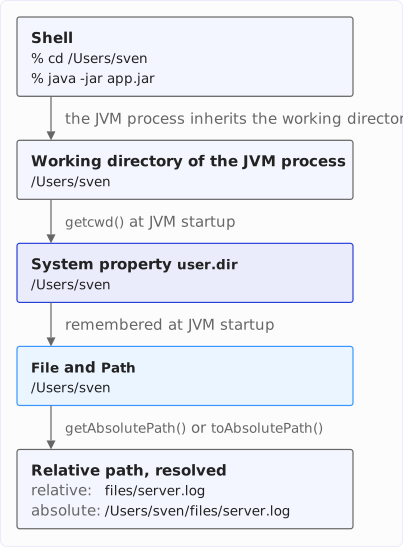
As long as nobody changes user.dir, the working directory of the process, the system property, and the value that File and Path remembered all point to the same directory. What happens when that no longer holds is shown in the section Can You Change the Working Directory?
Reading the Working Directory
You can read the working directory through the system property user.dir, through an empty path, or through the path . – each of the two paths as a Path or as a File.
user.dir, Path.of(""), and new File("")
The following program prints the system property user.dir and the absolute paths of an empty Path and an empty File:
System.out.println("user.dir:     " + System.getProperty("user.dir"));
System.out.println("Path.of(\"\"):  " + Path.of("").toAbsolutePath());
System.out.println("new File(\"\"): " + new File("").getAbsolutePath());
user.dir: /Users/sven/Projects/HappyCoders/git-articles/java-file-io
Path.of(""): /Users/sven/Projects/HappyCoders/git-articles/java-file-io
new File(""): /Users/sven/Projects/HappyCoders/git-articles/java-file-ioAll three lines show the same directory. An empty path is a relative path without a single name. When Java resolves it against the working directory, what remains is the working directory itself.
System.getProperty("user.dir") returns a String, whereas Path.of("").toAbsolutePath() returns a Path you can continue working with right away – for example, to build a path below it with resolve(). If you want to open files relative to the working directory, I therefore recommend Path.of("").toAbsolutePath().
Path.of() has existed since Java 11. Older code often uses Paths.get(""). That is the same thing, as Paths.get() calls Path.of() internally.
Only since Java 25 does new File("") fully stand for the working directory – the section An Empty File up to Java 24 shows why.
The Dot: Path.of(".") and new File(".")
Instead of the empty path, you will often find a dot, which stands for the current directory in paths. The following program prints Path.of(".") and new File(".") as absolute paths, each followed by its cleaned-up variant. Finally, it compares the absolute path of Path.of(".") with the absolute path of Path.of(""):
Path dot = Path.of(".").toAbsolutePath();
File dotFile = new File(".");
System.out.println("Path.of(\".\"):         " + dot);
System.out.println("  normalize():        " + dot.normalize());
System.out.println("new File(\".\"):        " + dotFile.getAbsolutePath());
System.out.println("  getCanonicalPath(): " + dotFile.getCanonicalPath());
Path empty = Path.of("").toAbsolutePath();
System.out.println("dot.equals(empty):    " + dot.equals(empty));
Path.of("."): /Users/sven/Projects/HappyCoders/git-articles/java-file-io/.
normalize(): /Users/sven/Projects/HappyCoders/git-articles/java-file-io
new File("."): /Users/sven/Projects/HappyCoders/git-articles/java-file-io/.
getCanonicalPath(): /Users/sven/Projects/HappyCoders/git-articles/java-file-io
dot.equals(empty): falseBoth absolute paths end in /.: toAbsolutePath() and getAbsolutePath() append the relative path to the working directory without cleaning it up. Only normalize() and getCanonicalPath() remove the dot. What else distinguishes these two methods is shown in the article about file and directory names in Java.
The dot at the end changes the result of comparisons: for equals(), /…/java-file-io/. is a different path from /…/java-file-io, so the last line prints false. I therefore recommend the empty path rather than the dot.
An Empty File up to Java 24
Since Java 25, new File("") stands for the working directory – just as an empty Path always has (JDK-8024695).
Up to and including Java 24, an empty File was the working directory only in getAbsolutePath(). Methods that query the file system, such as exists(), isDirectory(), and list(), treated it as a file that does not exist.
The following program calls these four methods on an empty File:
File empty = new File("");
String[] entries = empty.list();
System.out.println("getAbsolutePath(): " + empty.getAbsolutePath());
System.out.println("exists():          " + empty.exists());
System.out.println("isDirectory():     " + empty.isDirectory());
System.out.println(
    "list():            " + (entries == null ? "null" : entries.length + " entries"));
With Java 24, it prints:
getAbsolutePath(): /Users/sven/Projects/HappyCoders/git-articles/java-file-io
exists():          false
isDirectory():     false
list():            null
With Java 25, the same program prints:
getAbsolutePath(): /Users/sven/Projects/HappyCoders/git-articles/java-file-io
exists():          true
isDirectory():     true
list():            13 entries
If your code runs on Java 24 or earlier, you should not determine the working directory with new File(""), but with Path.of("") or with new File(System.getProperty("user.dir")).
Symbolic Links in the Working Directory
If you start a program in a directory that you reached through a symbolic link, user.dir contains the path the symbolic link points to. On macOS, for example, /tmp is a symbolic link to /private/tmp.
The following program prints user.dir and the environment variable PWD, in which the shell stores the path of the current directory:
System.out.println("user.dir: " + System.getProperty("user.dir"));
System.out.println("PWD:      " + System.getenv("PWD"));
I started it in /tmp, with the absolute path to the classes on the class path:
% cd /tmp
% java -cp $REPO/target/classes eu.happycoders.workingdirectory.Ch1SymbolicLink
user.dir: /private/tmp
PWD:      /tmp
getcwd() returns the path under which the directory actually exists, without symbolic links. The shell, on the other hand, stores in PWD the path you used to change into the directory.
You need to keep this in mind when you compare a path that your program builds from the working directory with a path from a configuration file or an environment variable: /tmp/report.txt and /private/tmp/report.txt are the same file, but not the same path.
The output also shows that, for the working directory, it does not matter where the classes are: the JVM loads them from $REPO/target/classes, and the working directory is still /private/tmp.
Relative Paths and the Working Directory
What the working directory means for your program becomes apparent as soon as it opens a file through a relative path.
The following program reads the file files/server.log from the repository. If it does not find the file, it prints the exception and, below it, the absolute path under which it looked:
Path log = Path.of("files/server.log");
try {
  String content = Files.readString(log);
  System.out.println("Read " + content.lines().count() + " lines");
} catch (NoSuchFileException e) {
  System.out.println(e);
  System.out.println("Absolute path:");
  System.out.println("  " + log.toAbsolutePath());
}
Started in the root directory of the repository, the program finds the file:
% java -cp target/classes eu.happycoders.workingdirectory.Ch2RelativePaths
Read 5 lines
Started in the target directory, the same program does not find the file. The class path there is just classes, because that directory is now directly below the working directory:
% cd target
% java -cp classes eu.happycoders.workingdirectory.Ch2RelativePaths
java.nio.file.NoSuchFileException: files/server.log
Absolute path:
  /Users/sven/Projects/HappyCoders/git-articles/java-file-io/target/files/server.log
The code is the same, the file is the same – only the working directory is different. Java therefore looks for files/server.log under target/files/server.log.
Note the first line of the output: the NoSuchFileException names only the relative path, exactly as you passed it. It does not say in which directory Java looked.
I therefore recommend that, when a file cannot be found, you also write the absolute path from toAbsolutePath() to the log. Then you can see right away in which directory the program was running.
Who Sets the Working Directory?
The working directory is not set by your program, but by the process that starts it. The following table shows in which directory common start environments start a Java program and where you can configure that directory:
| Start environment | Working directory | Setting |
|---|---|---|
Terminal: java and java -jar | the directory the shell is in | cd before starting |
| Maven: tests with Surefire | the directory of the pom.xml; with several modules, that of the module | parameter workingDirectory |
Maven: spring-boot:run and quarkus:dev | the directory of the pom.xml; with several modules, that of the module | parameter workingDirectory or workingDir |
Gradle: test, run, bootRun, and quarkusDev | the project directory; with several subprojects, that of the subproject | property workingDir or workingDirectory |
| IntelliJ IDEA: application | the project directory opened in IntelliJ | “Working directory” field of the run configuration |
| IntelliJ IDEA: JUnit tests | the same directory as with Maven or Gradle | “Working directory” field of the run configuration |
| Docker | the directory from WORKDIR, / if not set | WORKDIR in the Dockerfile |
| systemd | the directory from WorkingDirectory=, / if not set | WorkingDirectory= in the unit file |
The rows in detail:
- Terminal: Just like
java,java -jarstarts the program in the directory the shell is in, not in the directory of the JAR file. The launcher does not change the directory. - Maven: The Maven Surefire Plugin starts the test JVM in
${basedir}, the directory containing thepom.xml– in a project with several modules, in the directory containing thepom.xmlof the respective module.spring-boot:runandquarkus:devalso start the application there, as long as you do not setworkingDirectoryorworkingDir. - Gradle: For
test,run, andbootRun, the propertyworkingDirdefaults toprojectDir; forquarkusDev, the propertyworkingDirectorydoes. In a build with several subprojects, this is the directory of the respective subproject. - IntelliJ IDEA: An application run configuration without an entry in the “Working directory” field starts the application in the project directory, that is, in the directory you opened in IntelliJ. A JUnit run configuration, on the other hand, is preset to
$MODULE_WORKING_DIR$, which in a Maven or Gradle project is the same directory in which Maven or Gradle starts the tests. I checked both in the code of IntelliJ IDEA 2026.2.3. - Docker: Without
WORKDIR, the working directory is/. Many base images, however, set aWORKDIRthemselves, which your Dockerfile inherits. - systemd: Without
WorkingDirectory=, a service of the system instance starts in/, a service of the user instance in the user’s home directory.
Three consequences of this:
- A program that systemd starts without
WorkingDirectory=looks forfiles/server.logunder/files/server.log. - In a project with several Maven modules or Gradle subprojects, the tests of a module resolve relative paths against the directory of that module, not against the root directory of the project.
- In such a project, the same application runs in IntelliJ IDEA in the root directory of the project – the directory you opened – but with
mvn spring-boot:runin the directory of its Maven module. A relative path that works in the IDE therefore does not find its file with Maven.
Can You Change the Working Directory?
No. Java has no method that changes the working directory of the running process – there is no counterpart to the function chdir() on Linux and macOS.
Two ways look as if they did it anyway: System.setProperty("user.dir", ...) at runtime and the option -Duser.dir at startup.
Setting user.dir at Runtime
The following program prints user.dir and the absolute paths of a File and a Path for the file notes.txt. It then sets user.dir to /tmp and prints all three values again:
System.out.println("Before setProperty():");
System.out.println("  user.dir: " + System.getProperty("user.dir"));
System.out.println("  File:     " + new File("notes.txt").getAbsolutePath());
System.out.println("  Path:     " + Path.of("notes.txt").toAbsolutePath());

System.setProperty("user.dir", "/tmp");

System.out.println("After setProperty():");
System.out.println("  user.dir: " + System.getProperty("user.dir"));
System.out.println("  File:     " + new File("notes.txt").getAbsolutePath());
System.out.println("  Path:     " + Path.of("notes.txt").toAbsolutePath());
Before setProperty():
user.dir: /Users/sven/Projects/HappyCoders/git-articles/java-file-io
File: /Users/sven/Projects/HappyCoders/git-articles/java-file-io/notes.txt
Path: /Users/sven/Projects/HappyCoders/git-articles/java-file-io/notes.txt
After setProperty():
user.dir: /tmp
File: /Users/sven/Projects/HappyCoders/git-articles/java-file-io/notes.txt
Path: /Users/sven/Projects/HappyCoders/git-articles/java-file-io/notes.txtThe system property now has the new value, but File and Path still resolve notes.txt against the old working directory. The reason is shown in the section What Is the Working Directory?: neither of them reads user.dir on every call; both remembered the value when the JVM started.
For File, this has been the case since Java 11 (JDK-8194154, titled “System property user.dir should not be changed”). Since then, the Javadoc of the class System also states that changing a standard property may have unpredictable results.
Setting user.dir at Startup: -Duser.dir
At startup, you can set user.dir to a different directory with the option -Duser.dir=<directory>. The JVM then stores this value in user.dir instead of the directory the operating system reports. The working directory of the process does not change – and that leads to a contradiction.
The following program writes the file via-nio.txt with Files.writeString() and the file via-io.txt with a FileOutputStream. It then prints the absolute paths of both files and checks in two ways whether via-io.txt exists – once with File.exists() and once with Files.exists():
System.out.println("user.dir: " + System.getProperty("user.dir"));

Path viaNio = Path.of("via-nio.txt");
Files.writeString(viaNio, "written with Files.writeString()\n");

File viaIo = new File("via-io.txt");
try (FileOutputStream out = new FileOutputStream(viaIo)) {
  out.write("written with FileOutputStream\n".getBytes(UTF_8));
}

System.out.println("viaNio.toAbsolutePath():");
System.out.println("  " + viaNio.toAbsolutePath());
System.out.println("viaIo.getAbsolutePath():");
System.out.println("  " + viaIo.getAbsolutePath());
System.out.println("viaIo.exists():                " + viaIo.exists());
System.out.println("Files.exists(viaIo.toPath()): " + Files.exists(viaIo.toPath()));
I started it in the root directory of the repository and set user.dir to the target directory:
% java -Duser.dir=$REPO/target -cp $REPO/target/classes \
    eu.happycoders.workingdirectory.Ch4UserDirOption
user.dir: /Users/sven/Projects/HappyCoders/git-articles/java-file-io/target
viaNio.toAbsolutePath():
  /Users/sven/Projects/HappyCoders/git-articles/java-file-io/target/via-nio.txt
viaIo.getAbsolutePath():
  /Users/sven/Projects/HappyCoders/git-articles/java-file-io/target/via-io.txt
viaIo.exists():                true
Files.exists(viaIo.toPath()): false
According to the two absolute paths, both files are in target. In fact, they are in two different directories:
% ls via-*.txt target/via-*.txt
target/via-nio.txt
via-io.txt
Files.writeString() wrote via-nio.txt to target, whereas the FileOutputStream wrote via-io.txt to the root directory. The two APIs pass the relative path to the operating system in different ways:
- NIO.2: If
user.dirdiffers from the working directory of the process,Pathresolves a relative path againstuser.diritself and passes the absolute path to the operating system. java.io:FileOutputStreampasses the relative path unchanged, and the operating system resolves it against the working directory of the process. OnlygetAbsolutePath()usesuser.dir– and therefore shows a path at which the file does not exist.
The last two lines of the program output show the same thing when checking whether the file exists: viaIo.exists() asks the operating system with the relative path and finds via-io.txt in the root directory. Files.exists(viaIo.toPath()) resolves the same path against user.dir and looks in target, where the file does not exist.
The JVM also resolves the class path against user.dir. With a relative class path, it no longer finds the class it is supposed to start:
% java -Duser.dir=$REPO/target -cp target/classes \
    eu.happycoders.workingdirectory.Ch4UserDirOption
Error: Could not find or load main class eu.happycoders.workingdirectory.Ch4UserDirOption
Caused by: java.lang.ClassNotFoundException: eu.happycoders.workingdirectory.Ch4UserDirOption
The class loader turns target/classes into an absolute path with Path.of() and toRealPath() – resolved against user.dir, that is …/target/target/classes. This directory does not exist, so the class loader drops the entry.
I therefore recommend never overwriting user.dir – neither with System.setProperty() nor with -Duser.dir. Neither changes the working directory of the process; both only cause parts of the JDK to work with different directories.
If your program is to run in a different directory, you have to start it there: with cd in the start script, with WorkingDirectory= in systemd, with WORKDIR in the Dockerfile, or – from within a Java program – with ProcessBuilder.directory().
What Works Instead
Instead of changing the working directory, you can define your own base directory, load files from the class path, and start child processes in a directory of your choice.
Defining a Base Directory
If files belong to the installation of your program – configuration, data, logs – you should determine their directory once at startup and resolve all paths against it.
The following program reads the base directory from the environment variable APP_HOME. If the variable is missing, it uses the working directory. It appends the path of the log file to the base directory with resolve():
String appHomeVariable = System.getenv().getOrDefault("APP_HOME", "");
Path appHome = Path.of(appHomeVariable).toAbsolutePath().normalize();
Path log = appHome.resolve("files/server.log");
System.out.println("App home: " + appHome);
System.out.println("Log file: " + log);
System.out.println("Lines:    " + Files.readAllLines(log).size());
I started it in the target directory with APP_HOME=... It finds the file that the program from the section Relative Paths and the Working Directory did not find from there:
% cd target
% APP_HOME=.. java -cp classes eu.happycoders.workingdirectory.Ch5BaseDirectory
App home: /Users/sven/Projects/HappyCoders/git-articles/java-file-io
Log file: /Users/sven/Projects/HappyCoders/git-articles/java-file-io/files/server.log
Lines:    5
toAbsolutePath() turns .. into the path …/target/.., and normalize() shortens it to the root directory.
A relative value like .., however, depends on the working directory itself. In the start script, you should therefore set APP_HOME to an absolute path. Instead of an environment variable, you can also pass the directory as an argument or as a system property of your own, for example -Dapp.home=/opt/app – just not through user.dir.
Loading Files from the Class Path
Files that belong to the program itself and that it only reads – for example, default values and templates – are best placed on the class path. With Maven and Gradle, that means src/main/resources, or src/test/resources for test data.
You load such files with getResourceAsStream(), regardless of the directory in which the program was started. The following program loads the file defaults.properties, which is located in the repository under src/main/resources/eu/happycoders/workingdirectory:
Properties defaults = new Properties();
try (InputStream in = Ch5Resource.class.getResourceAsStream("defaults.properties")) {
  defaults.load(in);
}
System.out.println("user.dir: " + System.getProperty("user.dir"));
System.out.println("Defaults: " + defaults);
A name without a leading slash refers to the package of the class, here eu/happycoders/workingdirectory.
I started the program in /tmp, outside the repository:
% cd /tmp
% java -cp $REPO/target/classes eu.happycoders.workingdirectory.Ch5Resource
user.dir: /private/tmp
Defaults: {server.port=8080, log.level=INFO}
Although the working directory is /private/tmp, the program loaded the default values from the class path.
getResourceAsStream(), however, only returns an InputStream. Files that your program writes therefore belong in a base directory as in the previous section.
Starting Child Processes in Another Directory
If you start another process from Java, it inherits the working directory of your program. With ProcessBuilder.directory(), you can give it a different working directory.
The following program runs the command pwd two times, once without and once with directory(); pwd prints its working directory. inheritIO() sends the output of pwd to the console of the Java program, and waitFor() waits until pwd has finished, so that the two outputs do not get mixed up:
System.out.print("Without directory(): ");
new ProcessBuilder("pwd").inheritIO().start().waitFor();

System.out.print("directory(\"target\"): ");
new ProcessBuilder("pwd").directory(new File("target")).inheritIO().start().waitFor();
Without directory(): /Users/sven/Projects/HappyCoders/git-articles/java-file-io
directory("target"): /Users/sven/Projects/HappyCoders/git-articles/java-file-io/targetdirectory() only sets the working directory of the new process. The working directory of your program stays as it is.
Common Mistakes
The sections above show each of the following mistakes in detail:
- A relative path is only tested in the root directory: In a different start directory, Java looks for the file in a different place, and the
NoSuchFileExceptionnames only the relative path. - Tests in a project with several Maven modules or Gradle subprojects expect the root directory: Maven, Gradle, and IntelliJ IDEA start the tests in the directory of their module.
- An application is only tested in IntelliJ IDEA: In a project with several Maven modules, IntelliJ starts it in the root directory of the project, but
mvn spring-boot:runandmvn quarkus:devstart it in the directory of its module. user.diris changed withSystem.setProperty(): Since Java 11,FileandPathkeep resolving relative paths against the old directory afterwards.-Duser.diris used instead ofcd:Files.writeString()andFileOutputStreamthen write to different directories, and the JVM no longer finds a relative class path.new File("")on Java 24 or earlier:exists()returnsfalse, although the working directory exists.- The working directory from
Path.of("."): The absolute path ends in/.and, forequals(), is a different path from the absolute path ofPath.of(""). - A path comparison with a symbolic link:
user.dircontains the path the link points to, on macOS, for example,/private/tmpinstead of/tmp.
Summary
The working directory belongs to the process, not to Java. The JVM asks the operating system for it at startup and stores it in the system property user.dir. File and Path resolve every relative path against it.
You can read the working directory with Path.of("").toAbsolutePath() or System.getProperty("user.dir"). You cannot change it from within Java: since Java 11, System.setProperty("user.dir", ...) only changes the value of the property, and with -Duser.dir at startup, Files.writeString() and FileOutputStream write to different directories.
The directory your program runs in is determined by the process that starts it – the shell, IntelliJ IDEA, Maven, Gradle, Docker, or systemd. Maven, Gradle, and IntelliJ IDEA start tests in the directory of the pom.xml or of the Gradle project – with several modules, in that of the respective module. IntelliJ IDEA, on the other hand, starts applications in the opened project directory, and Docker and systemd start them in / unless configured otherwise.
My recommendations:
- Read the working directory with
Path.of("").toAbsolutePath(), not withPath.of("."), and – as long as your code runs on Java 24 or earlier – not withnew File(""). - Write the absolute path from
toAbsolutePath()to the log when a file cannot be found. - Define a base directory for files that belong to the installation – through an environment variable, a system property of your own, or an argument – and resolve all paths against it with
resolve(). - Use
getResourceAsStream()to load files from the class path that belong to the program and that it only reads. - Never set
user.diryourself, neither withSystem.setProperty()nor with-Duser.dir. If your program is to run in a different directory, you have to start it there.
How to build paths with Path and File and how getAbsolutePath() differs from getCanonicalPath() is shown in the article about file and directory names in Java from the same series. How to create, copy, move, and delete files and directories is shown in the article Java: Create, Copy, Move, and Delete Files and Directories.
If you enjoyed this article, I’d appreciate a review on my ProvenExpert profile.